
Setting up a proxy on Android - Setup guide by StableProxy
Published
Jun 24th, 2026
Topic
Manual
Reading time
10 mins


Author
StableProxy
Using Proxy on Android.
Using proxy servers, you can bypass geo-restrictions, mask your IP address, and shield your device from direct contact with malware. On Android, a proxy can be set up in two ways, depending on the type of network connection: via cellular data or Wi-Fi.
Setting up a proxy for cellular data connection
To set up a proxy when using mobile internet, follow the steps below.
- Open your device settings.
- Tap on "Network & Internet" or "Connections".
- From the suggested options, choose "Mobile networks".
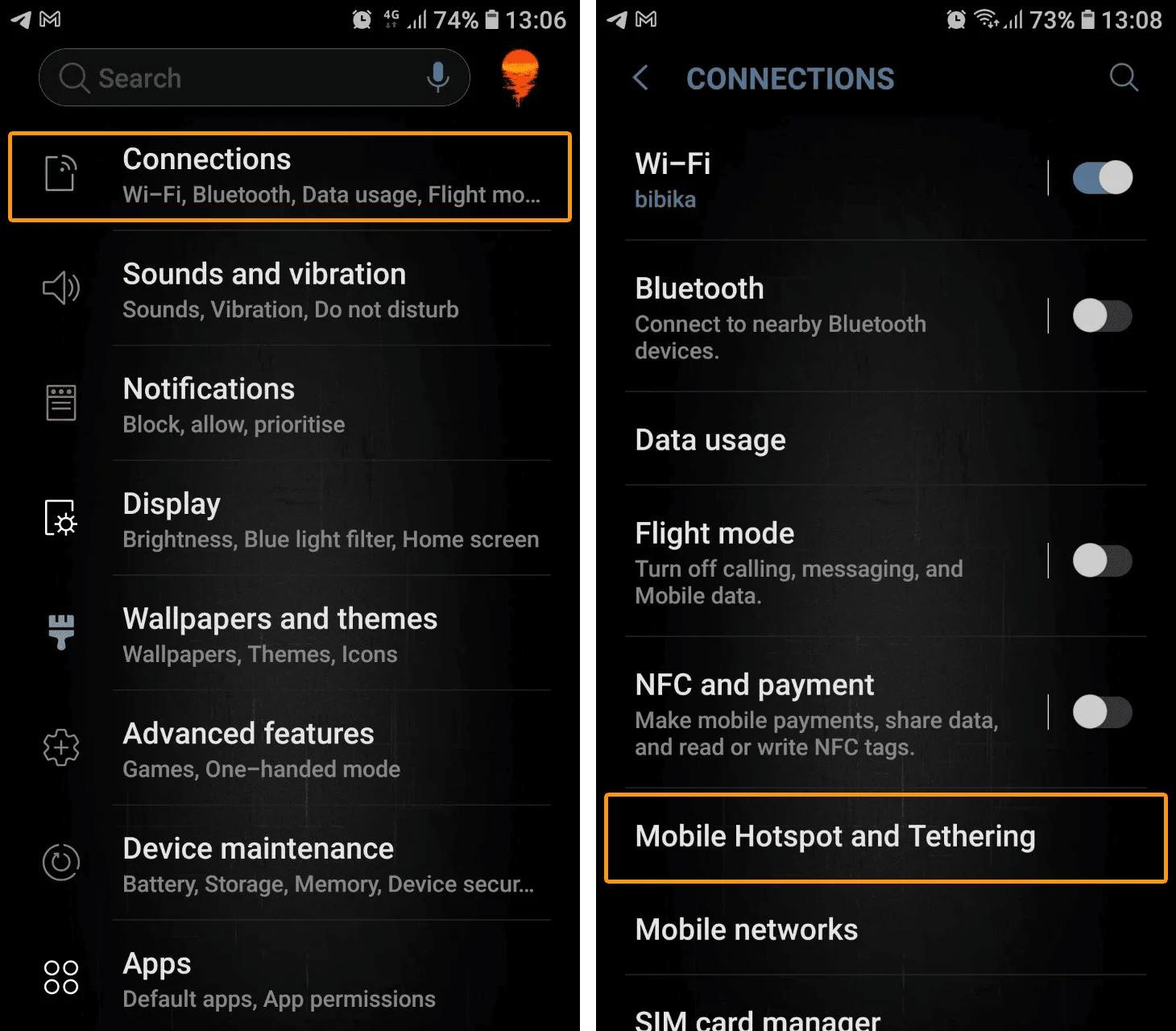
- Access settings of your mobile operator, tap on it, scroll down and choose "Access point names (APN)".
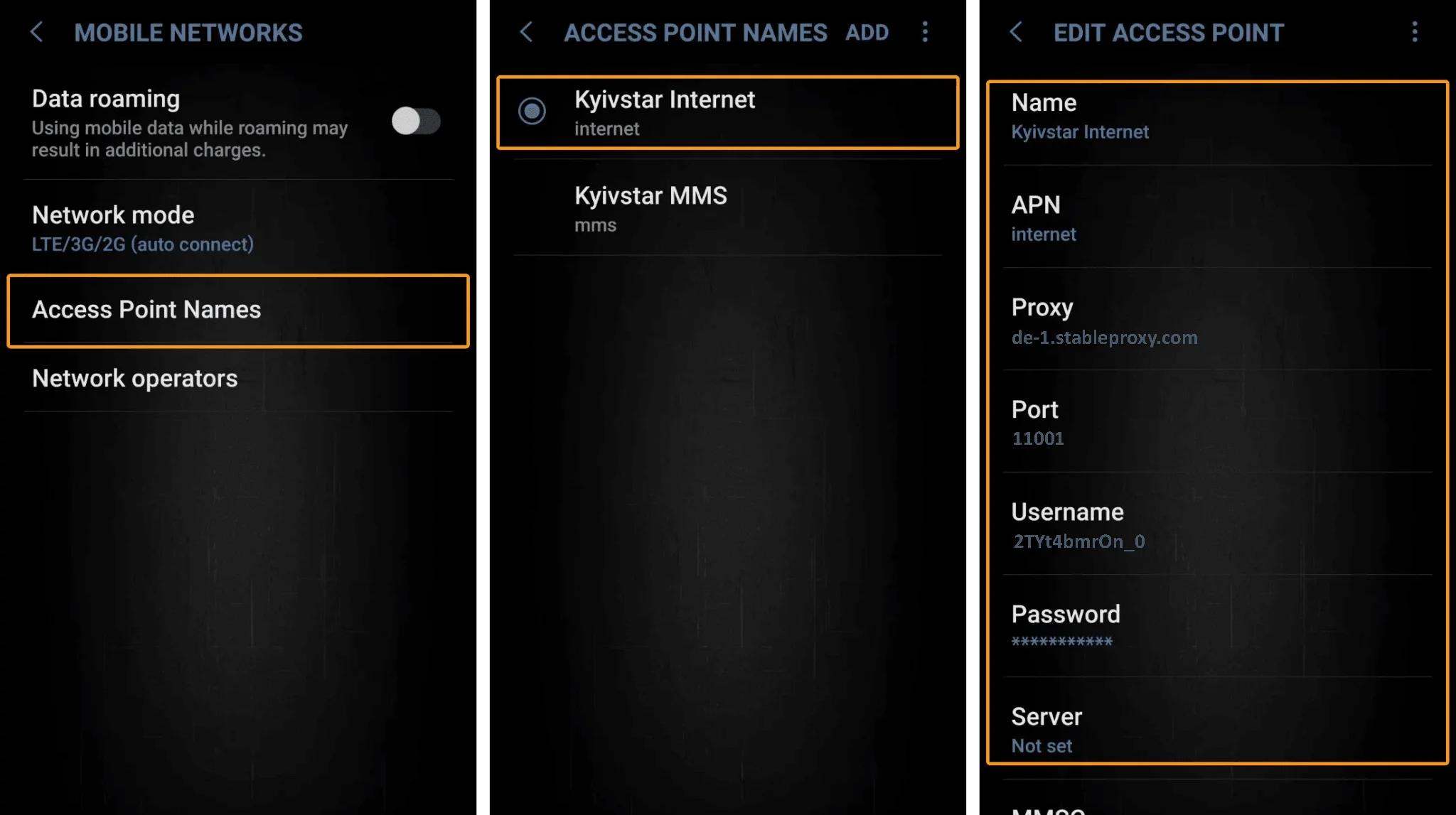
- From the APN list, choose the one that is currently in use to set up proxy server parameters on your Android device.
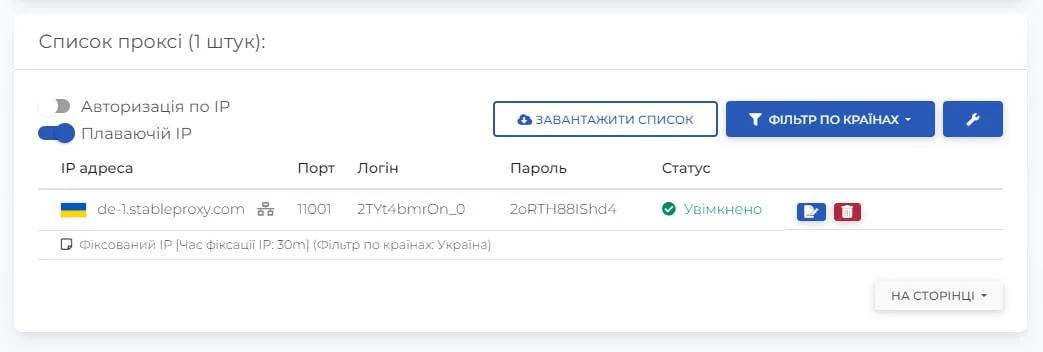
- Fill in the "Proxy", "Port", "Username", and "Password" fields with the proxy server data and your credentials.
You can use the proxy settings information available in the control panel.
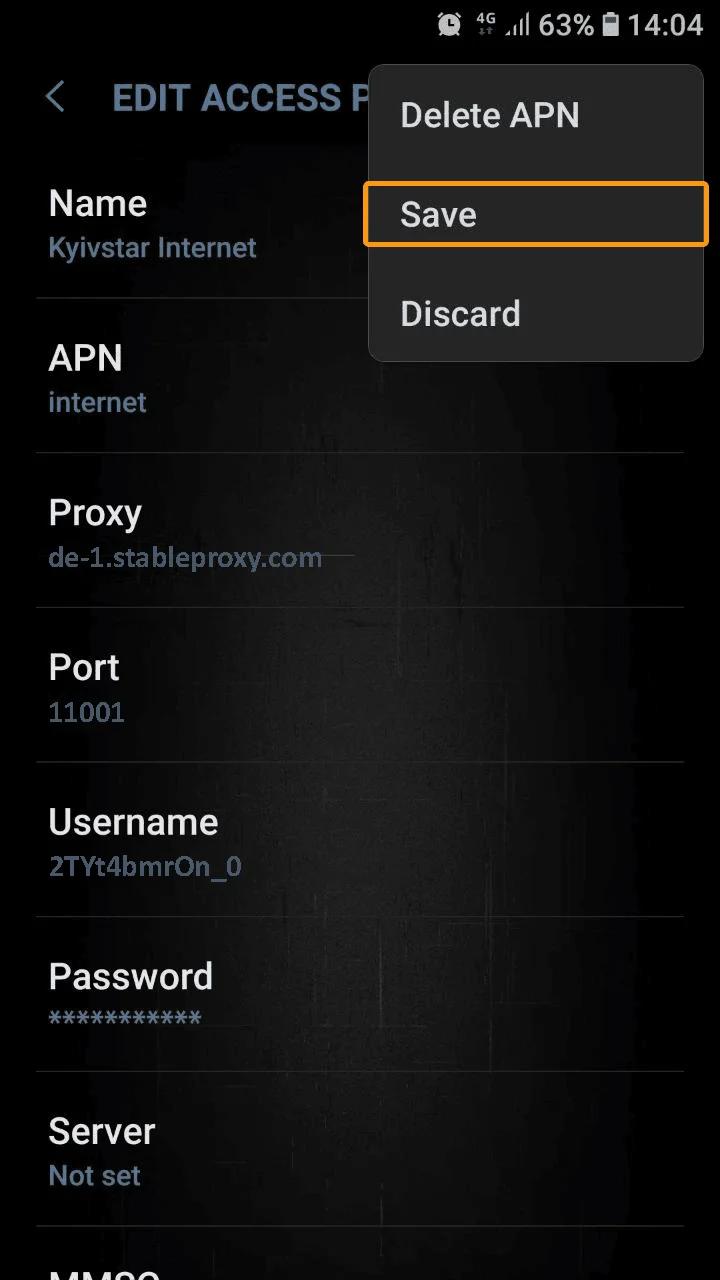
- Tap on the three vertical dots in the top right corner and choose "Save".
- To make the changes take effect, restart the network by disabling and re-enabling the connection.
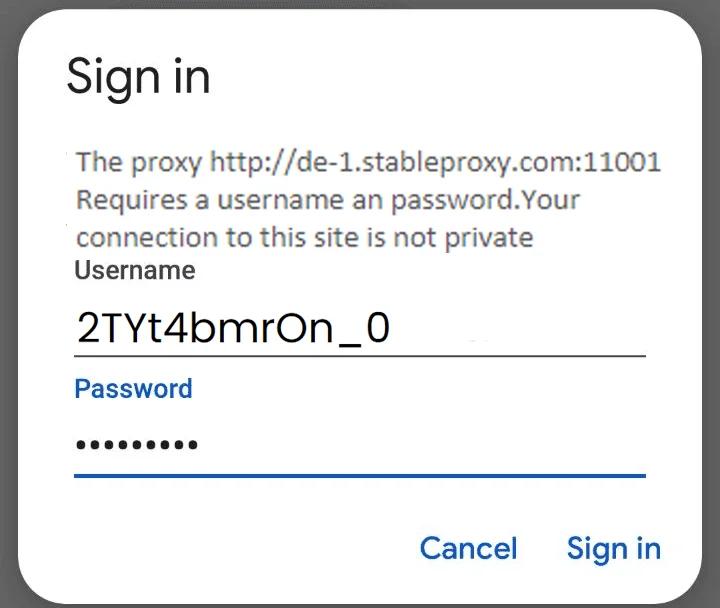
- The final step will be entering the credentials previously provided in a web browser and clicking the "Log in" button.
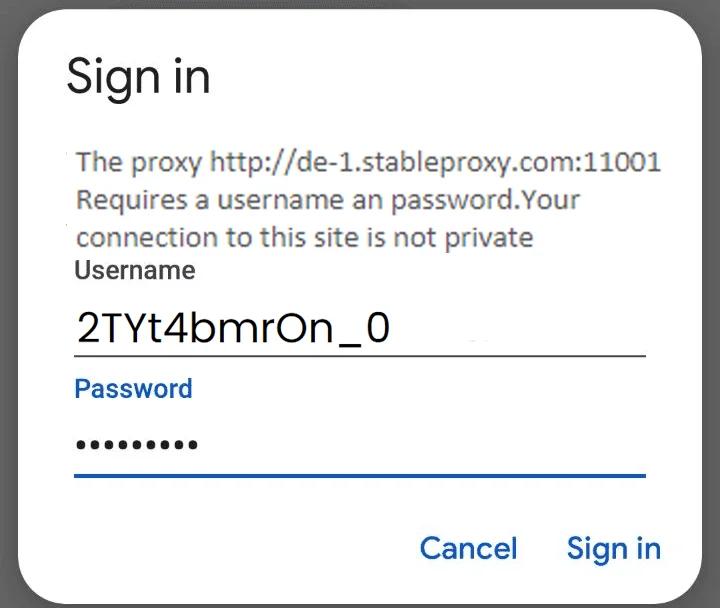
That's it! You have successfully set up a proxy server for a connection using mobile data.
Setting up a proxy for Wi-Fi connection
To set up a proxy when using a Wi-Fi connection, follow these steps.
-
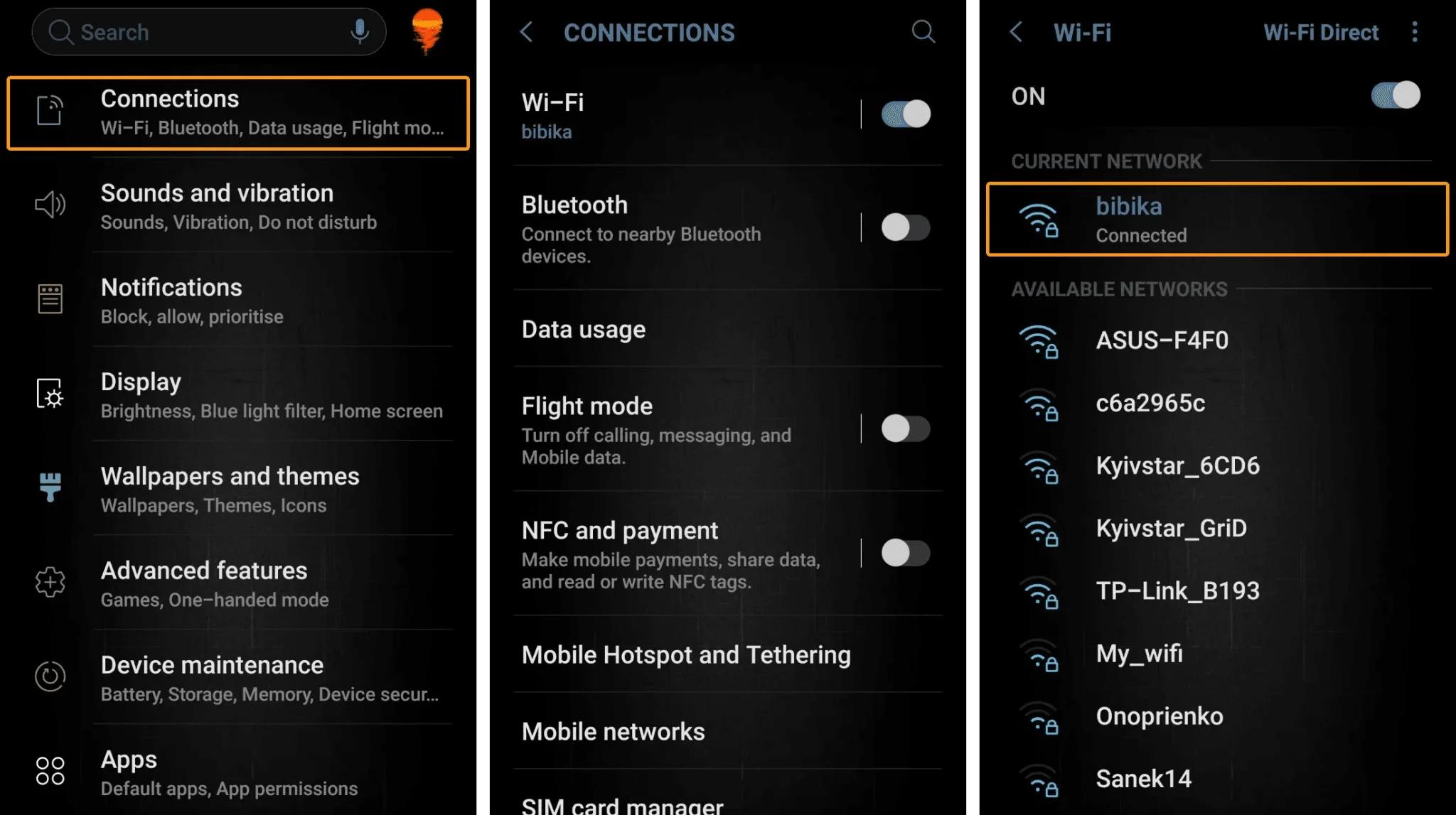
Open Settings > Network & Internet/Connections > Internet.
-
Select network information by clicking on the gear icon related to your Wi-Fi network.
-
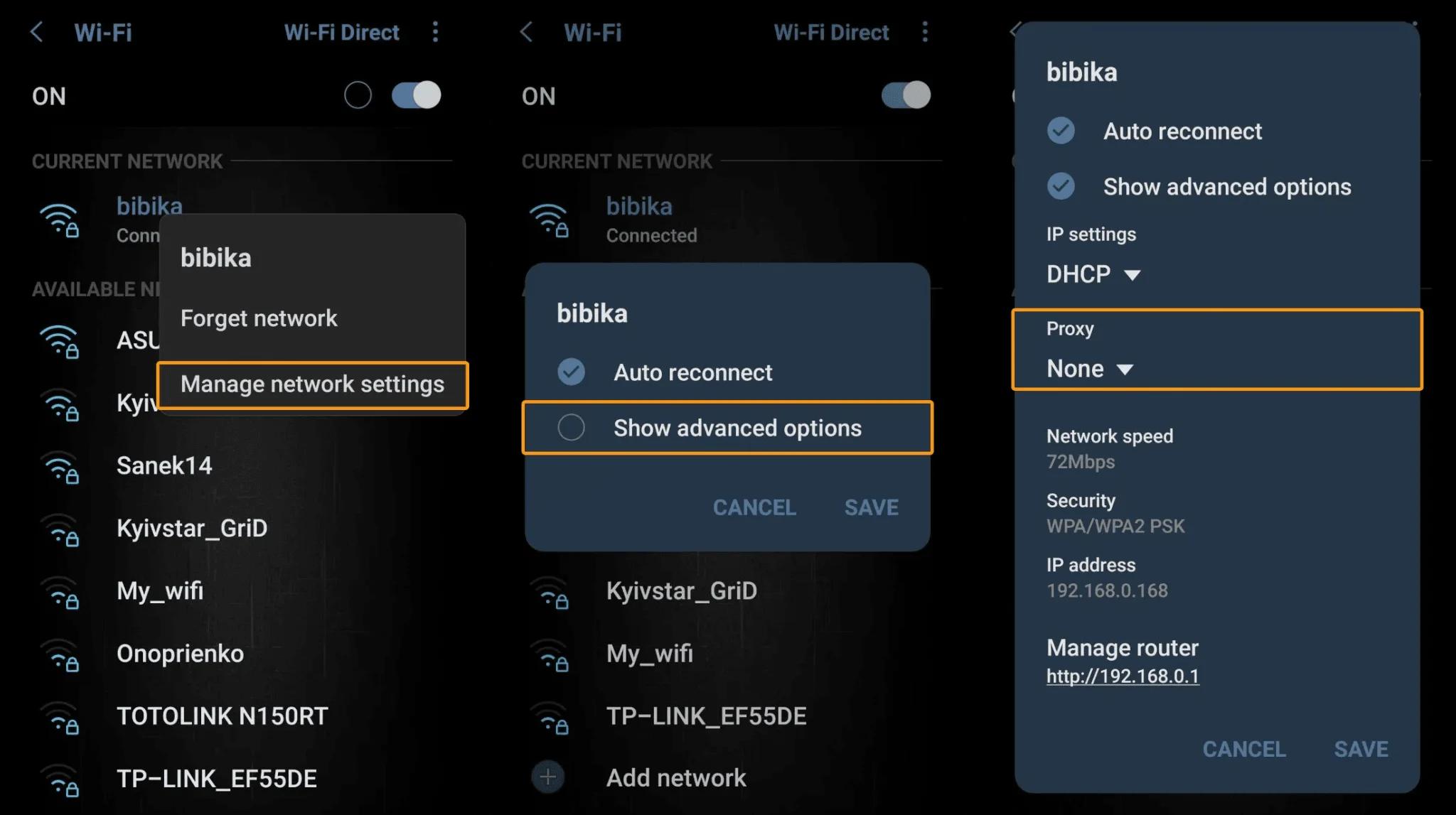
Tap on the edit button in the top right corner, and go to Network Settings Management > Show Advanced Options.
-
Choose Proxy and set it to Manual. Then enter your proxy server data and credentials.
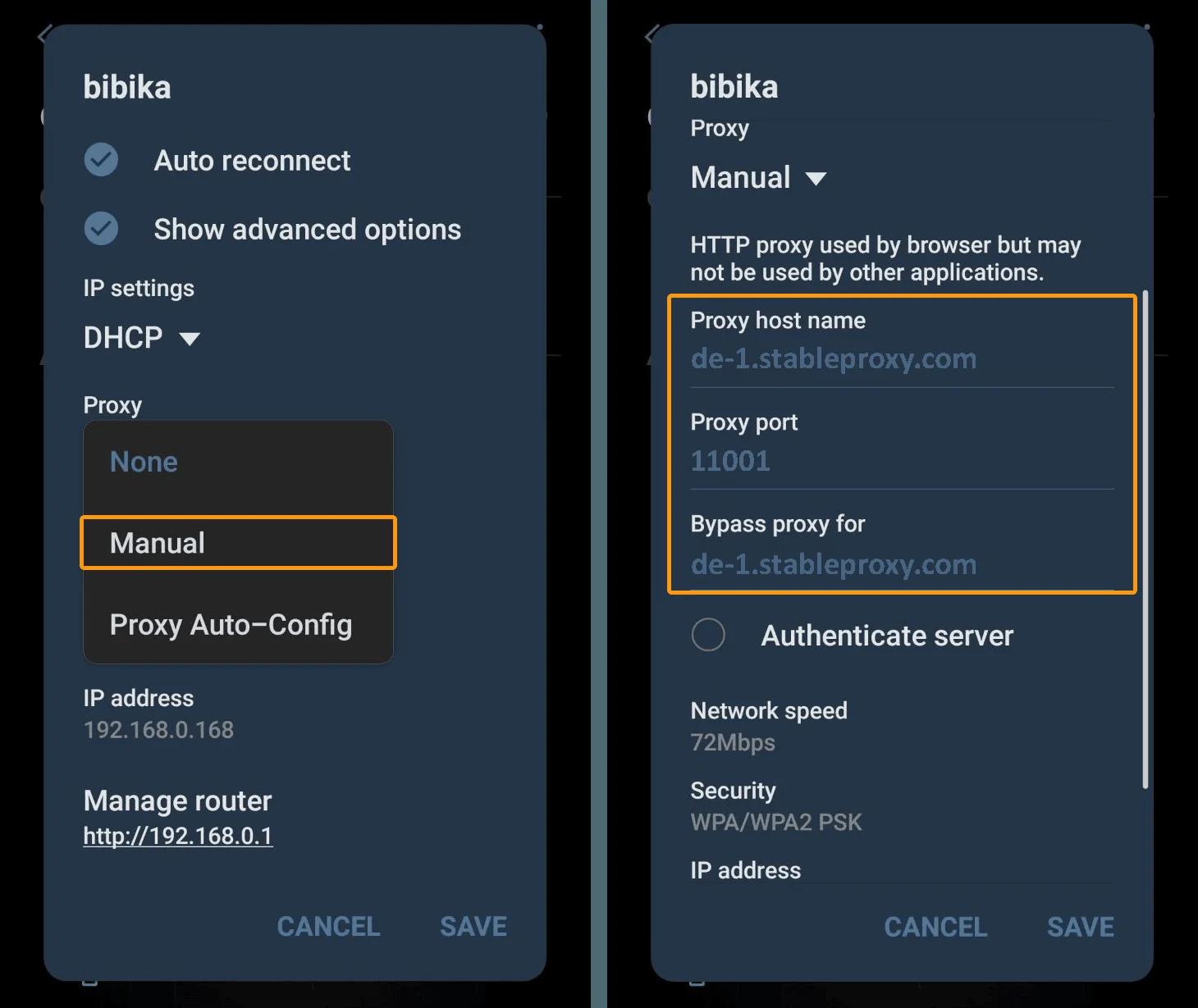
More detailed instructions on configuring proxy servers (residentials) can be found in the previous section. Note that Stableproxy server settings do not depend on the type of your network, be it cellular data or Wi-Fi, and they are interchangeable.
Please be aware that when using a proxy, the connection type for Wi-Fi is limited only to HTTP(S).
Also, you can list certain websites that should not use proxy settings in the "Bypass proxy for" option. Simply separate addresses with commas to create multiple exceptions. -
Open a web browser and log in to the system using your proxy server data, by entering the sub-user credentials of your Stableproxy account. Ensure that you are using the same data that was provided when creating a new sub-user in the Stableproxy information panel. This is unlike the data that you specified when creating the desktop.


StableProxy.pl © 2023-2024