
Setting up and configuring a proxy in Google Chrome - StableProxy
Published
Jun 27th, 2026
Topic
Manual
Reading time
10 mins


Author
StableProxy
Google Chrome Configuration
You are provided with detailed instructions on how to configure proxy settings in the Google Chrome browser:
- Launch Google Chrome
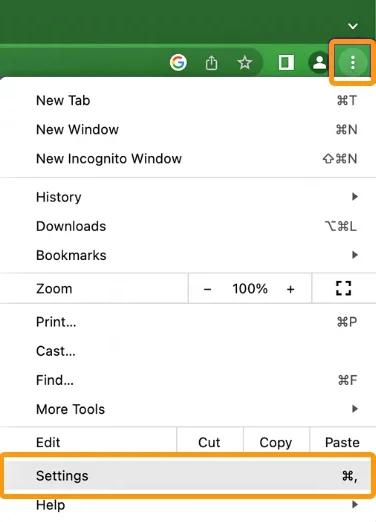
- Click on the icon with three dots in the upper right corner and select the "Settings" section.
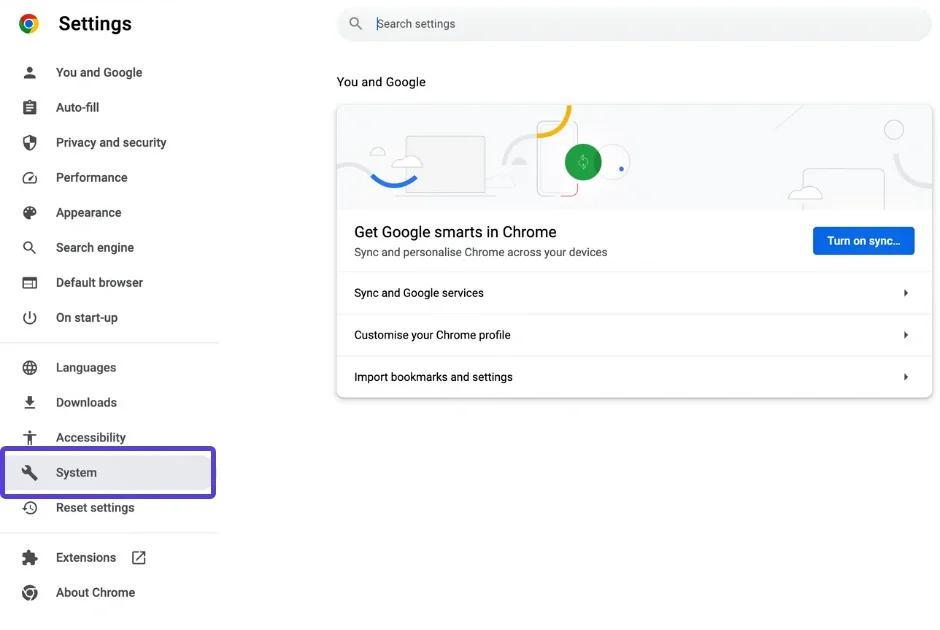
- Scroll to the bottom of the page and click on the "System" line
- Go to the "Open your computer’s proxy settings" point.
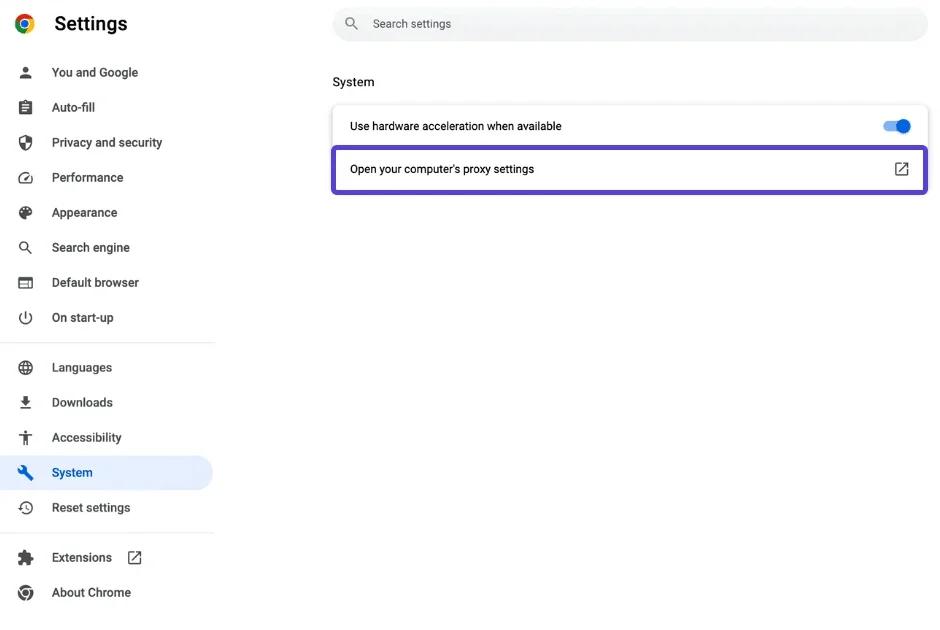
Please note that these proxy settings apply to the entire system, not just the Chrome browser.
The proxy settings outlined in this guide work for Windows OS. - Click on the "Change network settings" button.
- In the "Local Area Network (LAN)" tab, select the option "Use a proxy server for your LAN (These settings will also apply to other protocols such as HTTP and FTP)".
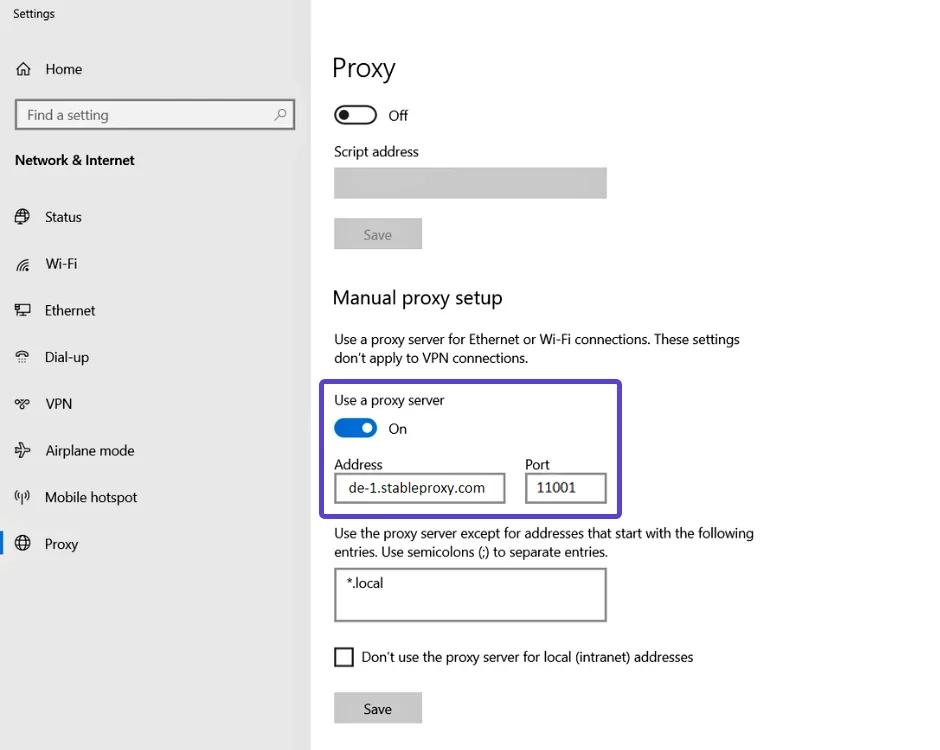
- In the "Proxy" section, activate the "Use proxy server" option.
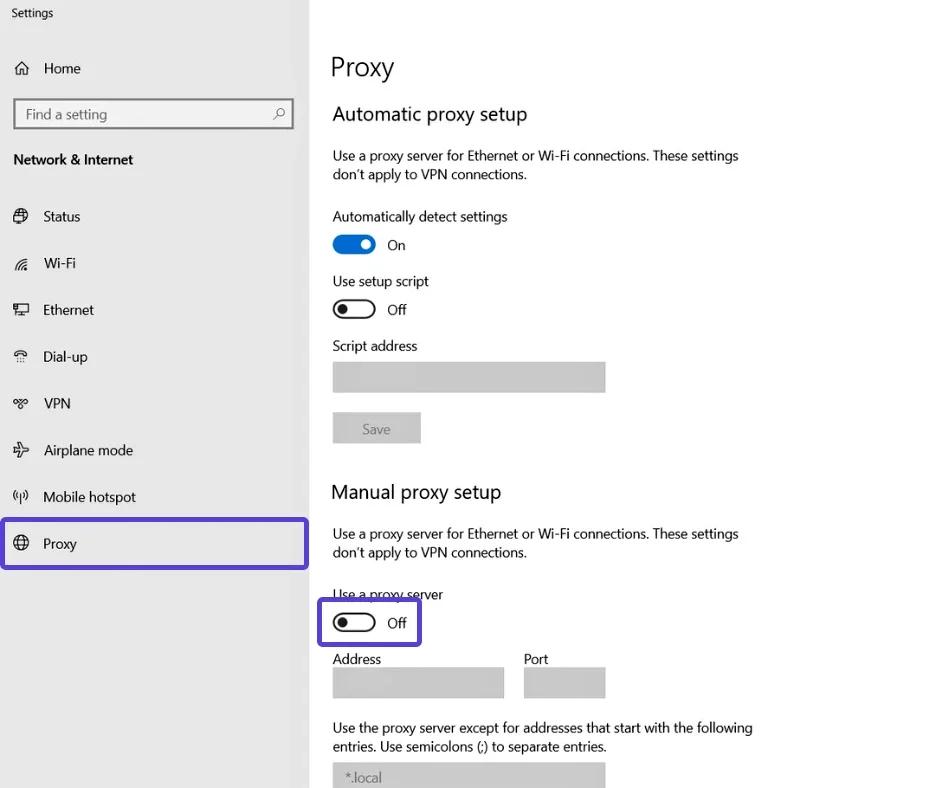
- Enter the IP address or domain name, as well as the port of the proxy server in the specially designated fields for that.
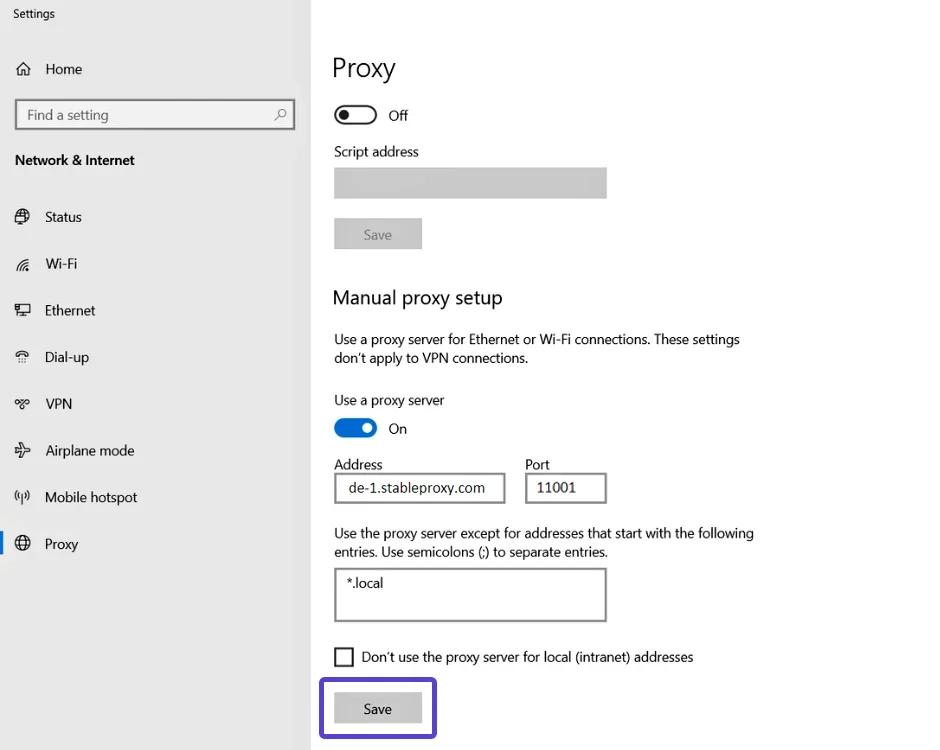
- Click the "Save" button to save the changes you have made.
In the event that you are connected to a proxy server that requires credentials for authentication, when you open any site, a credentials request window will appear where you will have to enter your login and password.


StableProxy.pl © 2023-2024