
Setting up a proxy server in Incogniton. Stableproxy integration
Published
Jun 27th, 2026
Topic
Manual
Reading time
10 mins


Author
StableProxy
What is the Incogniton Browser?
The Incogniton Browser is a web browser specifically designed to provide enhanced user privacy and security on the Internet. It comes with built-in tools for ensuring online anonymity, blocking ads and trackers, and safeguarding your online activities.
Integration of Stableproxy servers with Incogniton is a simple process. Just follow these steps:
- First, download and install the Incogniton app from Incogniton.com.
- Register and log into the app.
- Go to the "Profile Management" section and select "Add a new profile".
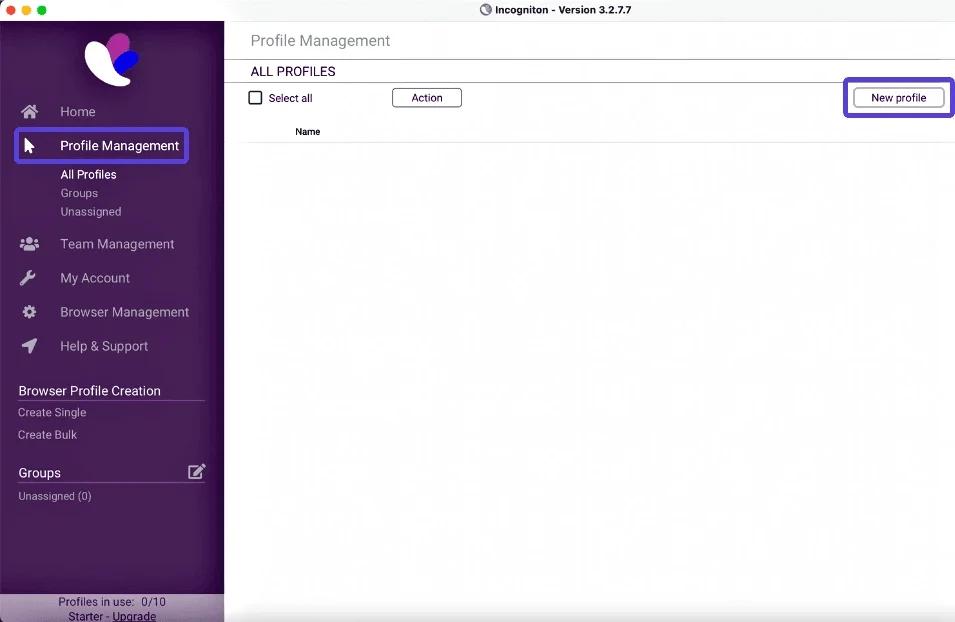
- In the left menu, click on the "Proxy" tab and enter the necessary information.
Choose HTTP Proxy as the connection type.
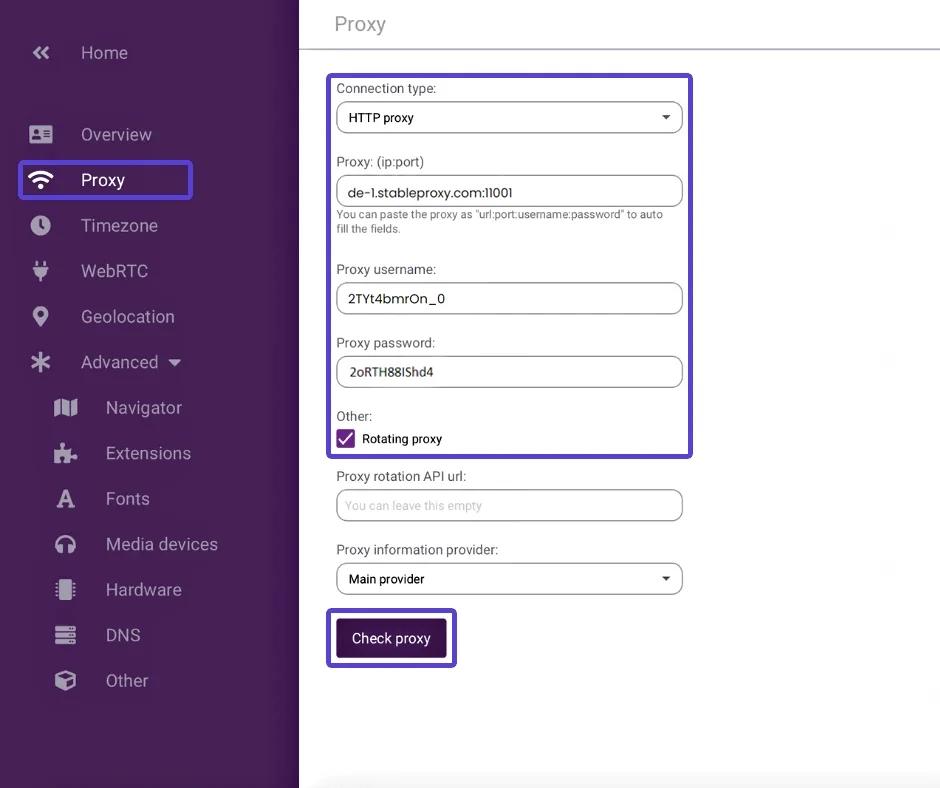
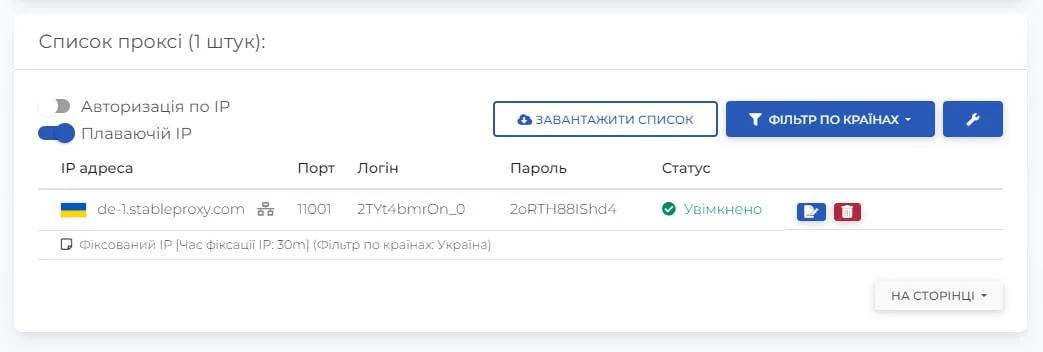
- Enter the proxy server settings using the data from your control panel.
- Fill in the remaining information (overview, time zone, etc.) based on your preferences.
Then click the "Create Profile" button.
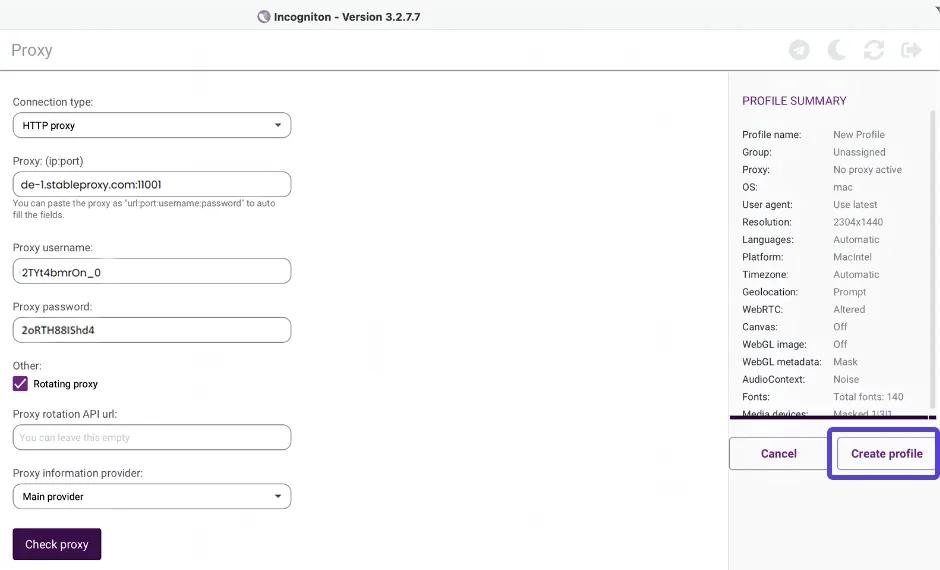
- Congratulations, you have successfully combined your proxies with Incogniton.
Simply click "Start" in the profile you have just set up, and an incognito browser window will appear.
Now you can enjoy the advantages of enhanced web navigation with the possibility of anonymity.
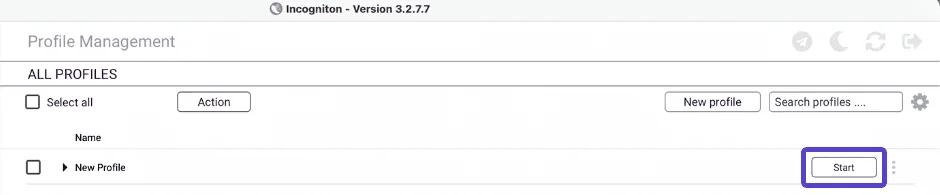
That's it! Your Stableproxy servers are now connected with Incogniton and ready to provide you with secure and convenient web surfing.


StableProxy.pl © 2023-2024