
How to set up a Stableproxy proxy server with Postern - Guide
Published
Jun 27th, 2026
Topic
Manual
Reading time
10 mins


Author
StableProxy
How does Postern work?
Connecting Stableproxy and Postern
Postern is a mobile application that offers a simple way to manage proxy servers for various tasks. It allows users to easily set up and manage proxies on their mobile devices. The Postern application allows you to route network traffic through proxy servers to improve privacy, bypass blocks, and more effectively manage the network. It simplifies the use of proxies and makes it more accessible for everyday use.
Connecting Stableproxy proxy and Postern
Here are the simple steps to take:
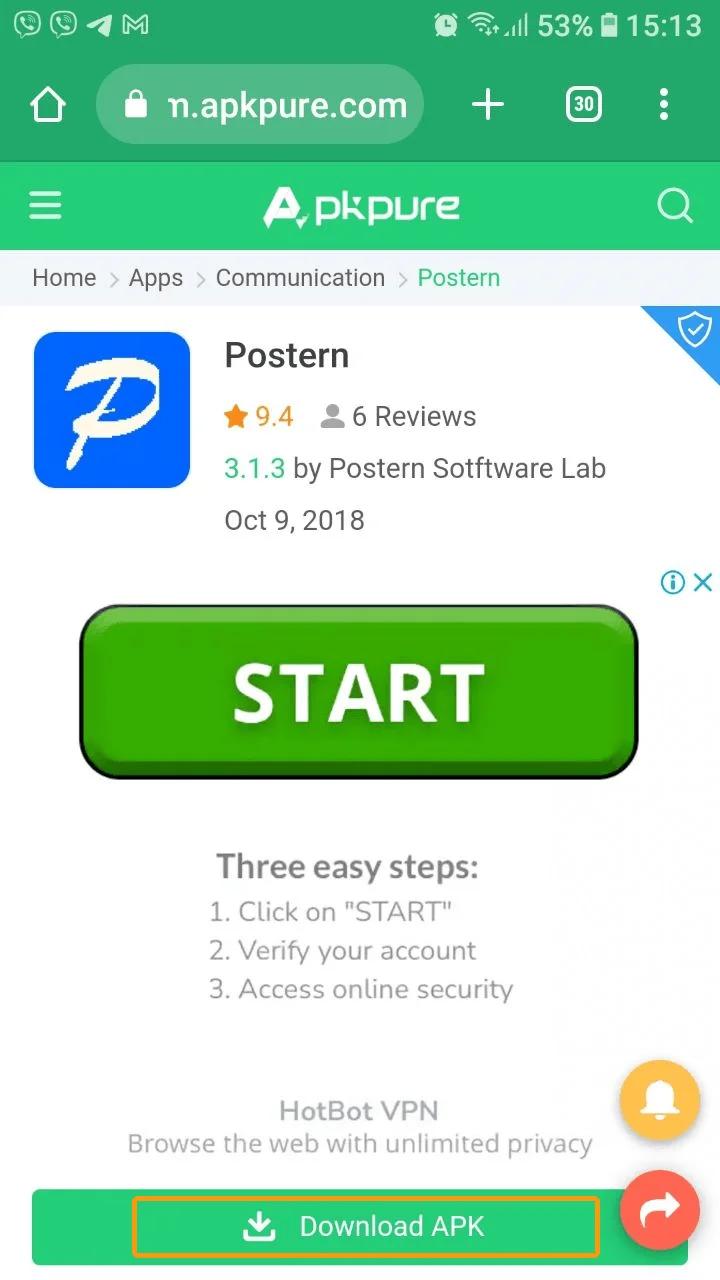
- Download the Postern application from the Google Play Store. To start the download, click on the "Install" button.
- After the application installation is complete, open it and select the "Add Proxy" option. Continue by clicking on this option.

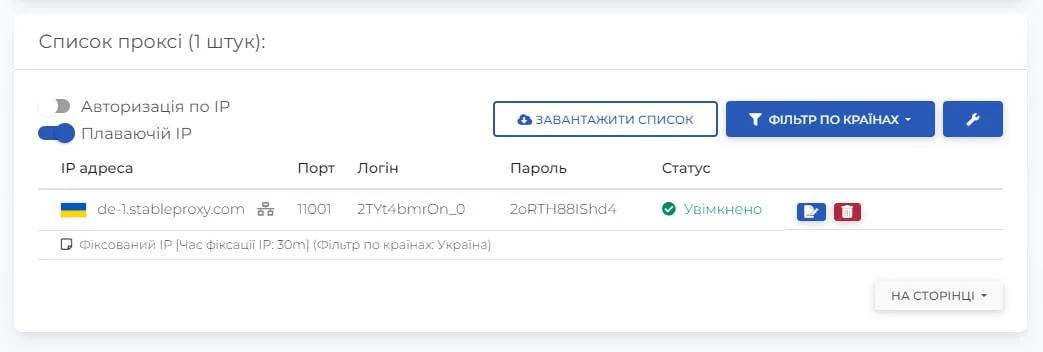
- Fill in the proxy settings using the information available in the control panel.
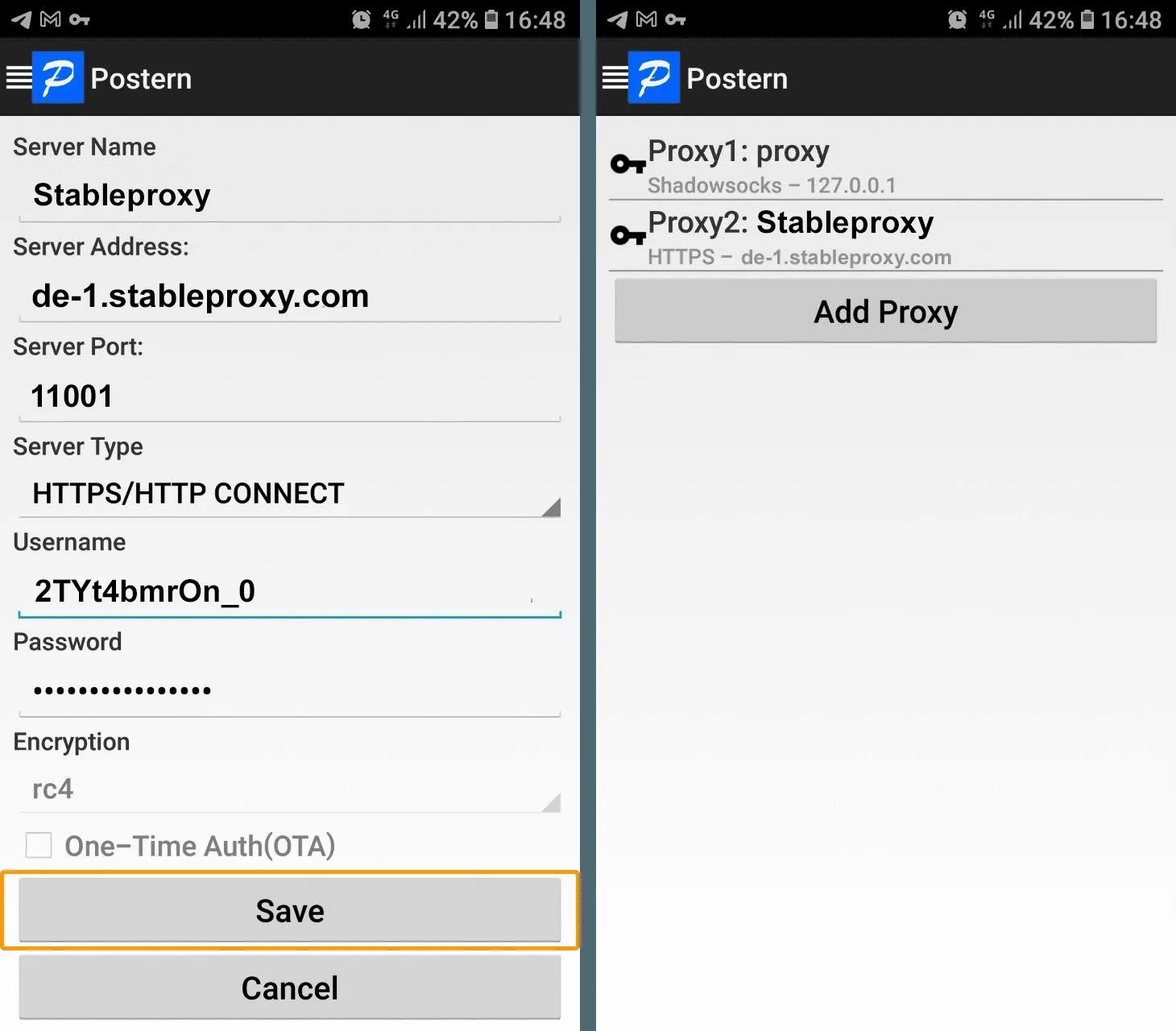
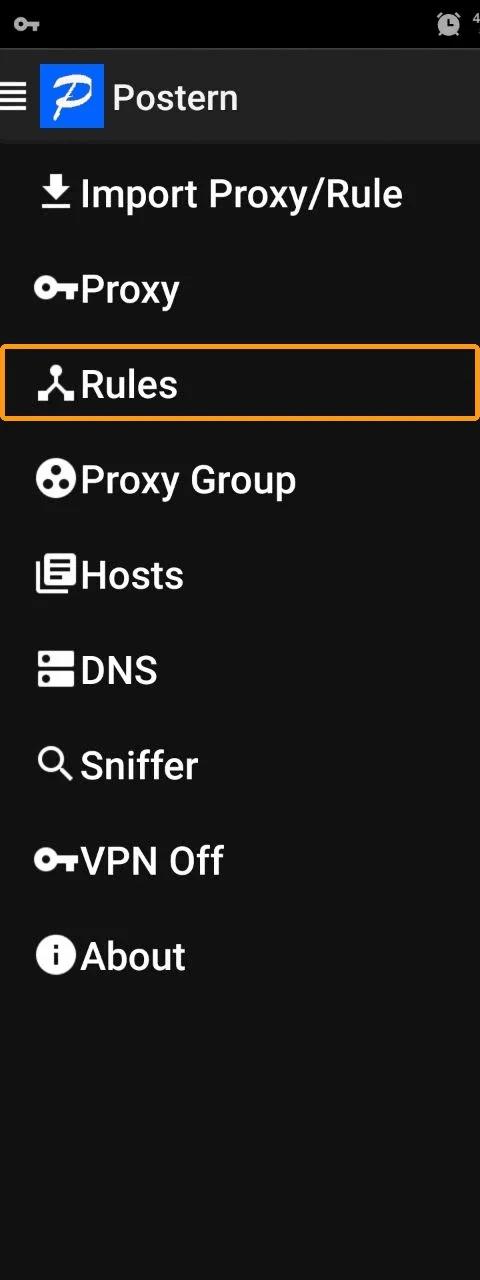
- When all the Stableproxy proxy server settings are entered, select the "Rules" item in the program menu.
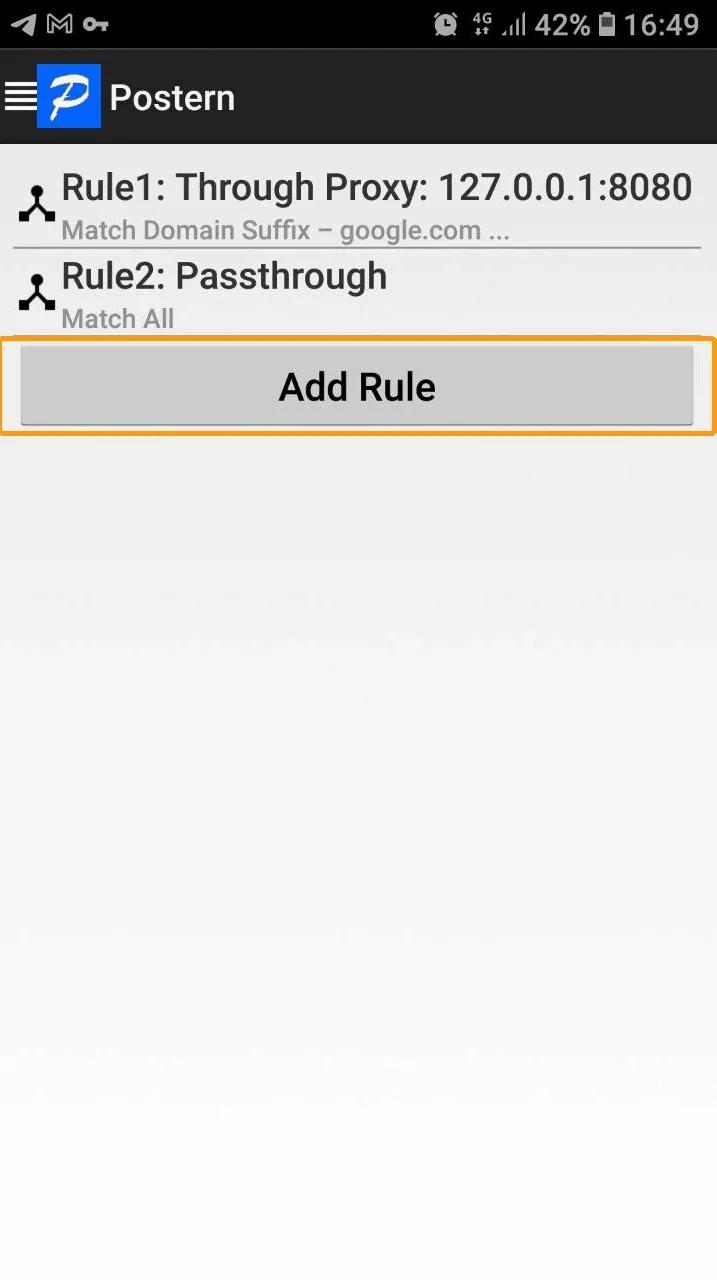
- Click on Add Rule
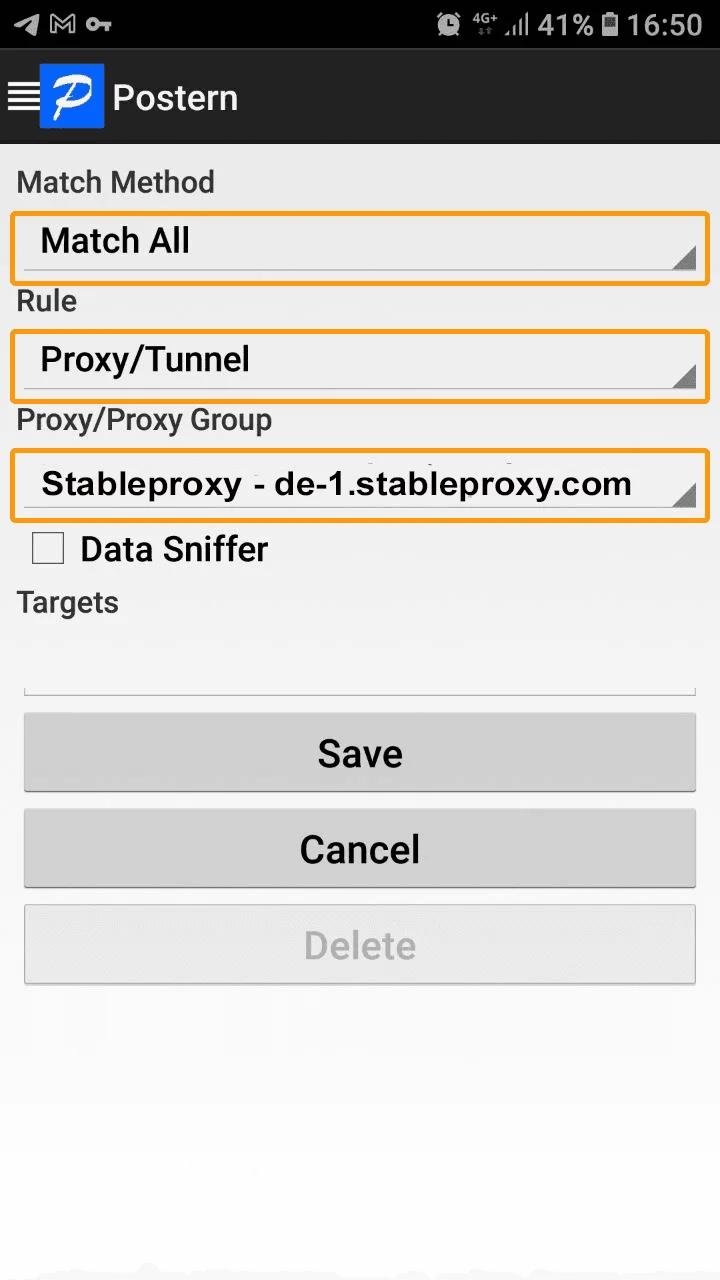
- In the "Matching Method" field, select "Match All". Next, select "Proxy/Tunnel" as the rule. In the "Proxy/Proxy Group" field, select "Stableproxy – de-1.stableproxy.com:11001". Then save the settings by clicking the "Save" button.
- To disable the proxy, activate the VPN. Open the program menu and click "Disable VPN" to disconnect. That's all you need to do.


StableProxy.pl © 2023-2024