
How to set up a proxy in Safari on macOS - Stableproxy.
Published
Jun 23rd, 2026
Topic
Manual
Reading time
10 mins


Author
StableProxy
Configuring Proxy Servers in Safari for macOS
Instructions for setting up a proxy server
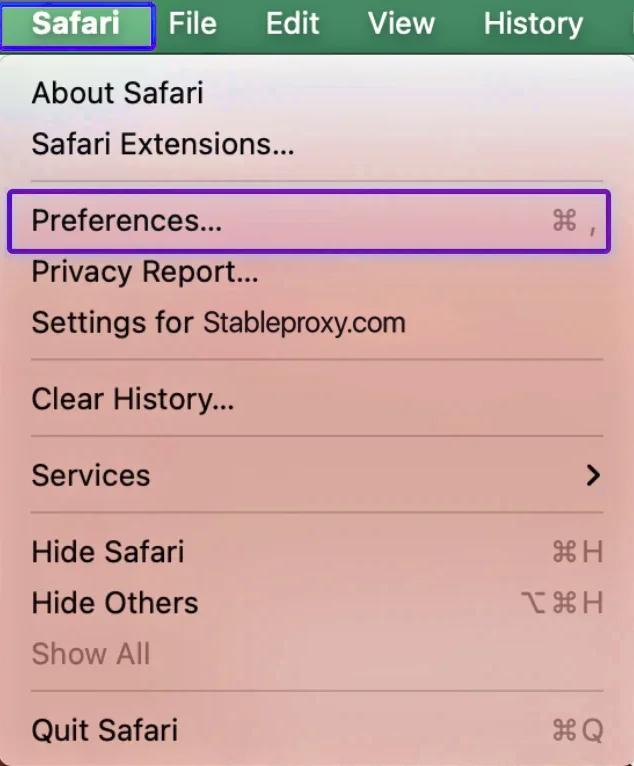
- Open the Safari browser and open the Safari > Preferences menu.
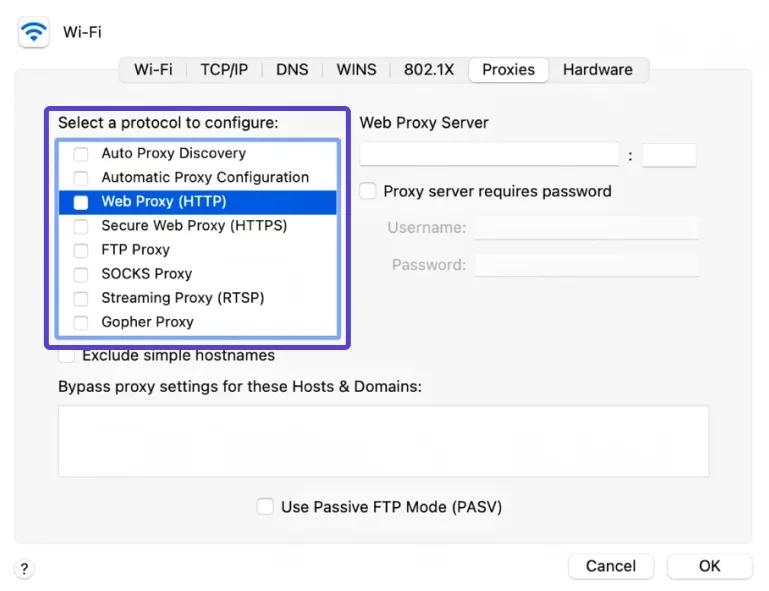
- Then go to the "Advanced" tab, from there - to the "Proxies" section, and press the "Change Settings" button.
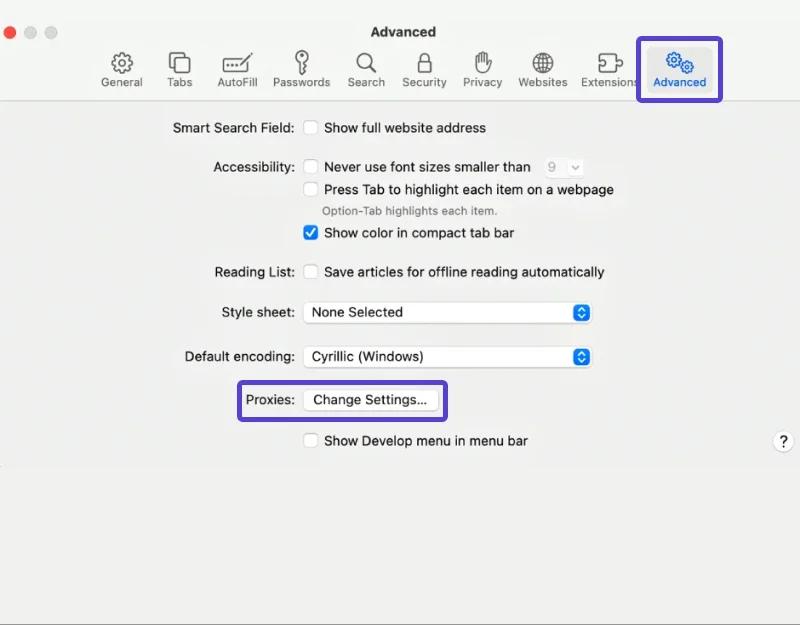 After opening a new window, you will be able to configure proxy servers. Note that this configuration will be applied to the entire computer, so all other browsers and programs you use will connect to the Internet through this proxy server. Additional steps can be found in our guide to implementing proxy servers on macOS.
 - To specify proxy server settings in the "Proxies" section, select the "Web Proxy (HTTP)" field and enter the proxy server node, port number, user login and password.
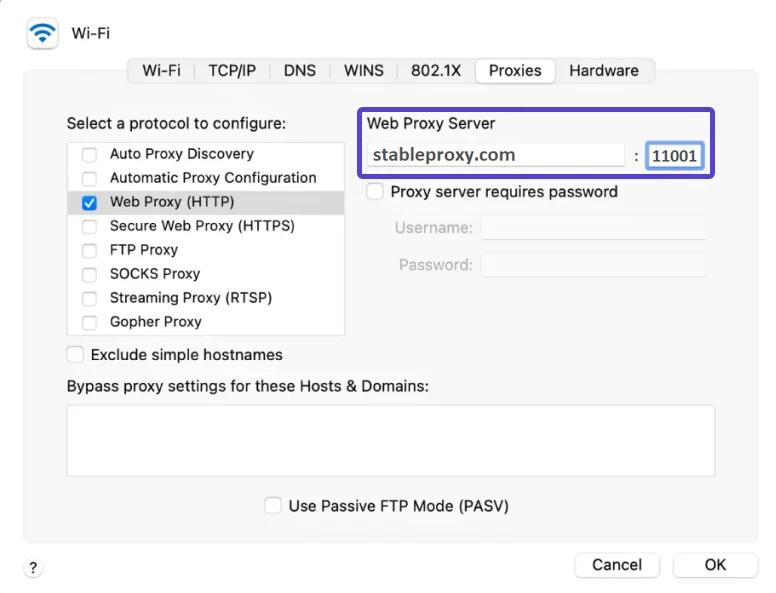
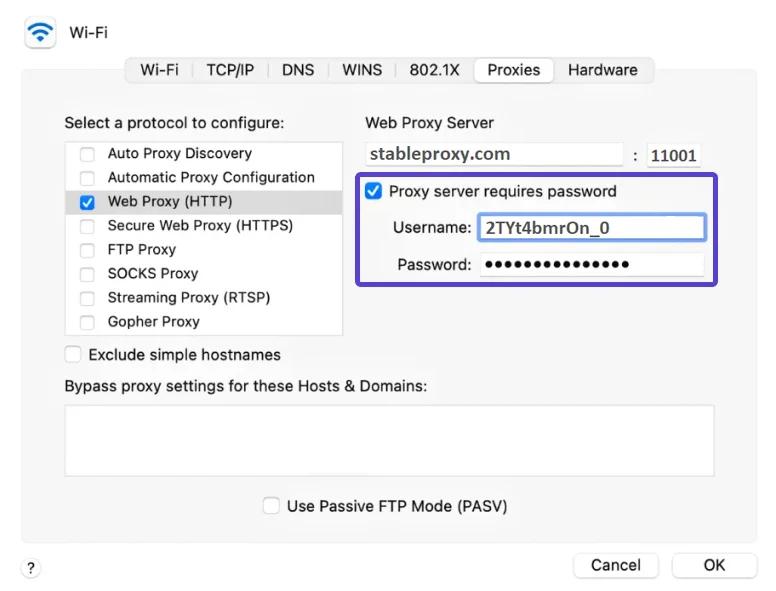
Don't forget to press the "OK" button to apply changes after completing all settings.
By following these simple instructions, you will be able to start using proxy servers in Safari and ensure safe and fast internet surfing.
Process of disabling the proxy server in Safari
To change the parameters, apply two simple steps:
- Open the proxy server settings window, as indicated in the above guide.
- In the "Proxies" section, uncheck all markers and press the OK button, which is located in the lower right corner of the window.


StableProxy.pl © 2023-2024