
Shadowrocket for iPhone - Setting up proxy servers on iPhone
Published
Jun 25th, 2026
Topic
Manual
Reading time
10 mins


Author
StableProxy
Concept of Shadowrocket
Shadowrocket is a multipurpose application for iOS devices, designed to control internet activity. It is an effective proxy tool that facilitates the regulation and management of proxy connections on your iPhone. Shadowrocket provides enhanced privacy, the ability to access content with restricted access, and browsing the Internet at a faster and safer speed. Shadowrocket is equipped with a user-friendly interface for easy setup and optimization of proxies.
Ways to get Shadowrocket
Shadowrocket is exclusively oriented towards iOS devices, so it is not available for Mac or Windows users. You can install Shadowrocket through the App Store on your iOS device. After finding the application, download and install it to start using all the features of Shadowrocket.
Setting up Shadowrocket through proxy servers
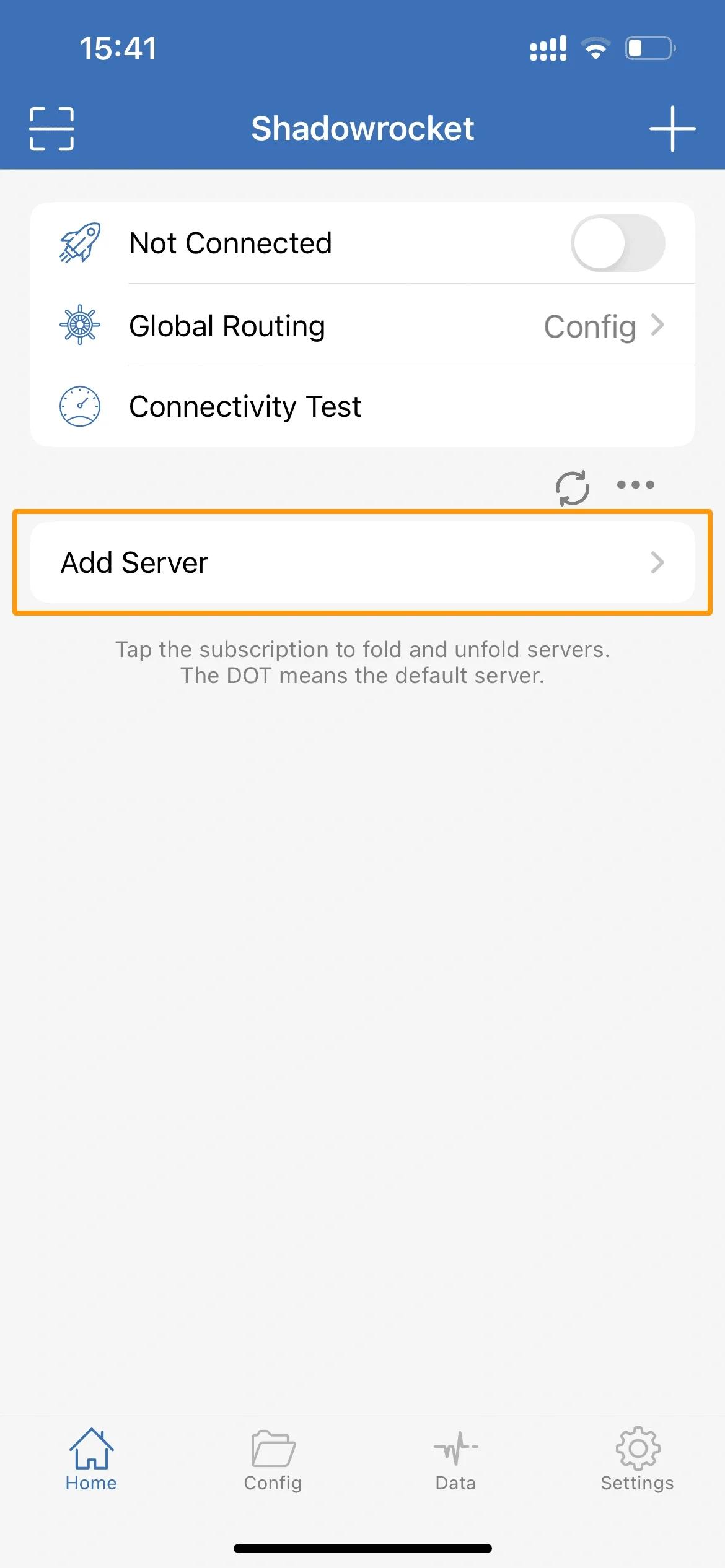
- Adding a server: To start using proxy servers in Shadowrocket, launch the Shadowrocket application and click on "Add Server".
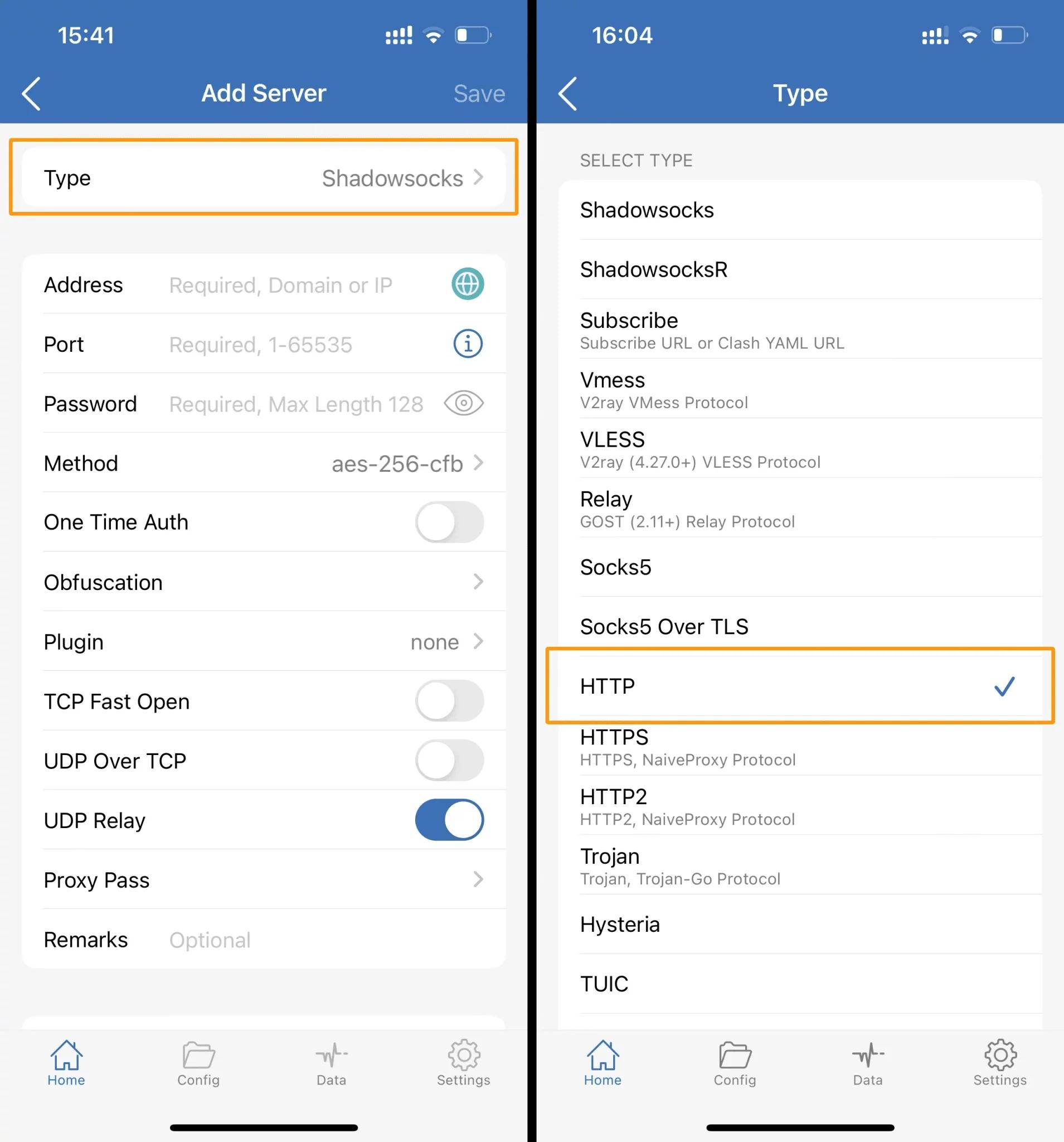
- In the window that appears, click on "Type". Select the "HTTP" option and return to the previous screen.
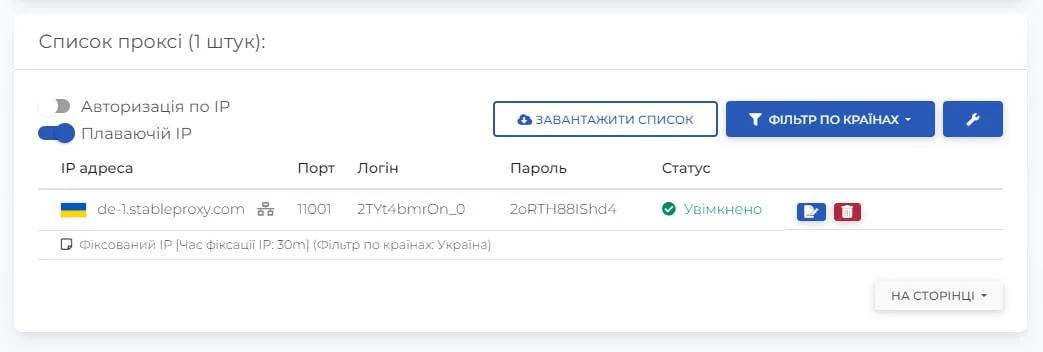
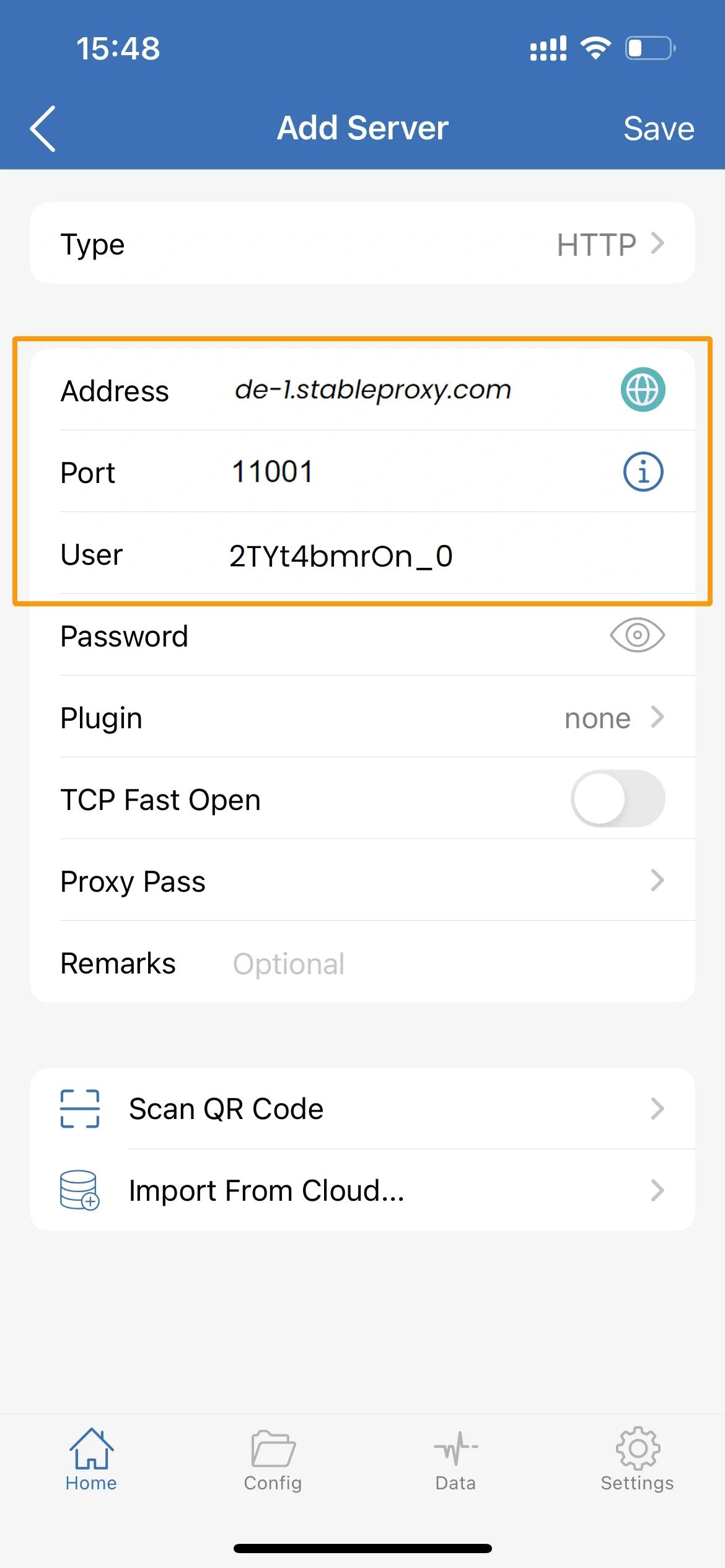
- Fill in the proxy settings based on the data from the control panel.
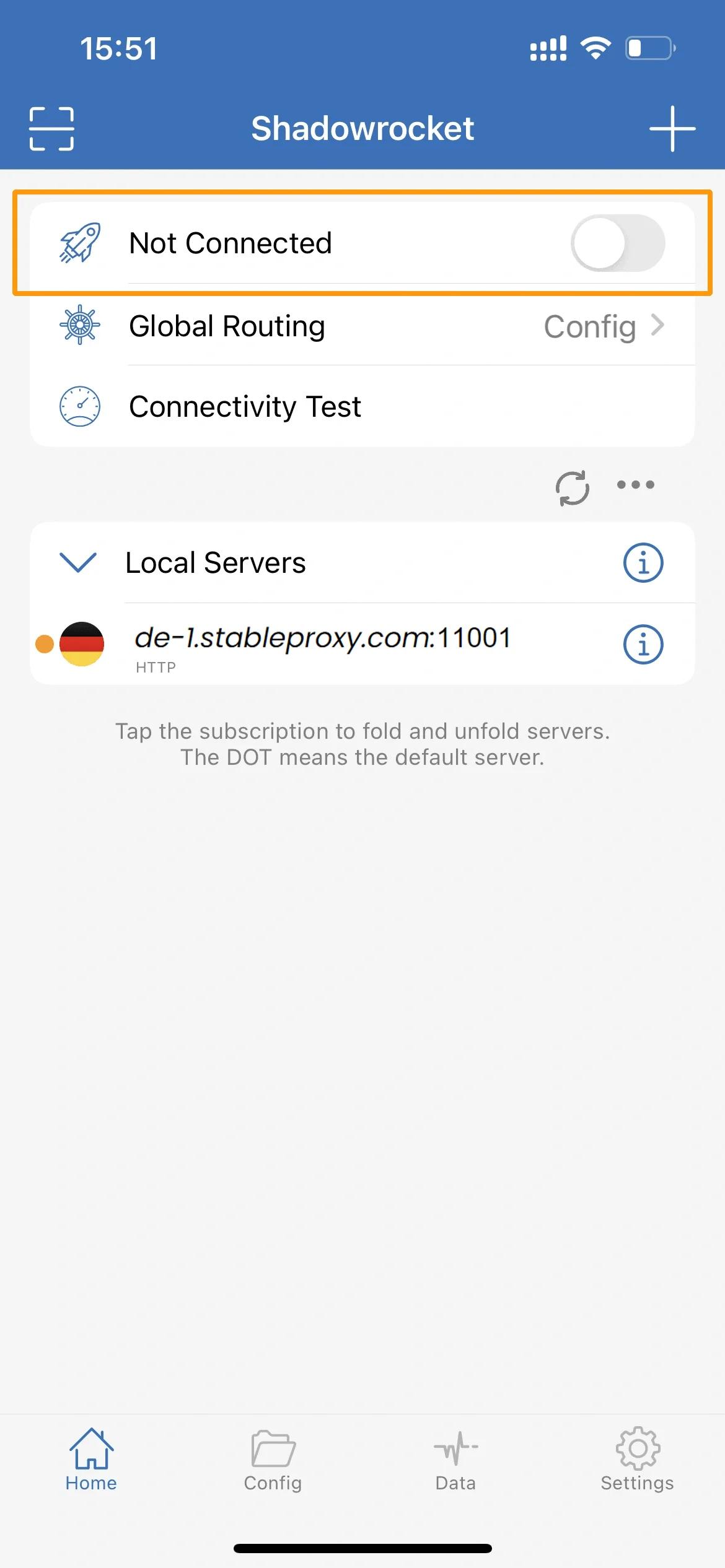
- Enabling the proxy: To enable the proxy, move the switch after filling in all the data.
If Shadowrocket is used for the first time, iOS will request to add the application to your VPN configurations and install a VPN profile. Click on "Add", then on "OK". To confirm, you will need to enter the password from your iPhone.
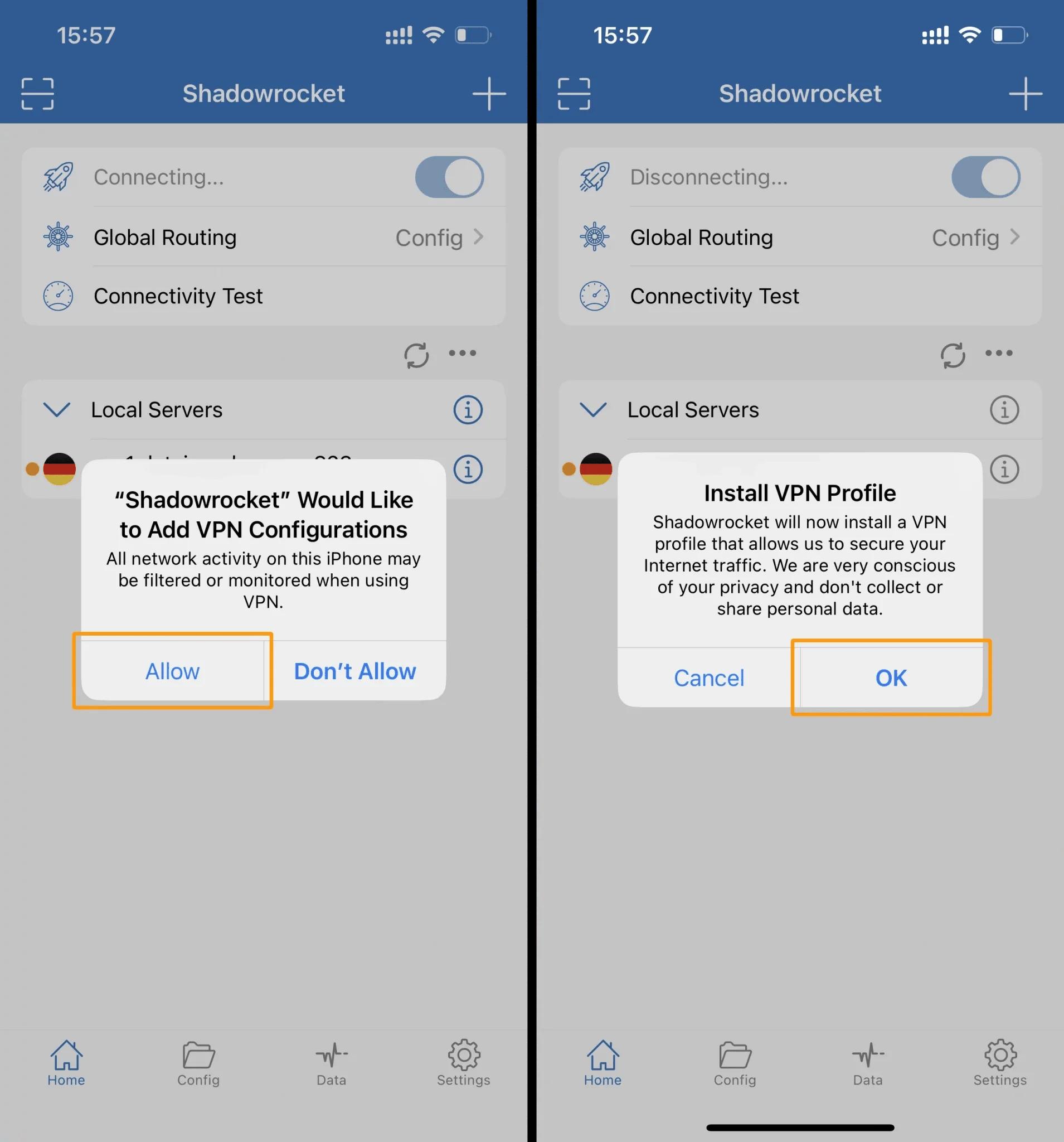
As a result, the switch at the top of the screen should become active, indicating that your proxy is turned on.


StableProxy.pl © 2023-2024