
Setting up a proxy in Sphere Browser - Guide from StableProxy
Published
Jun 27th, 2026
Topic
Manual
Reading time
10 mins


Author
StableProxy
What is the Sphere Browser?
The Sphere Browser is an internet browser that helps users browse and access various websites. With features such as tab browsing, bookmarks, and a friendly interface, the Sphere Browser simplifies website navigation, information search, and ensures smooth page viewing.
Configuring proxy servers in Sphere is not a difficult task. The process is as follows:
- Open the official Sphere website and download the browser.
- Unzip the downloaded files to your preferred location.
- Use the Sphere.exe program to launch the browser.
- Create an account by setting a password for login.
To create a new profile, follow the instructions below:
- On the main screen, click on "New Profile"
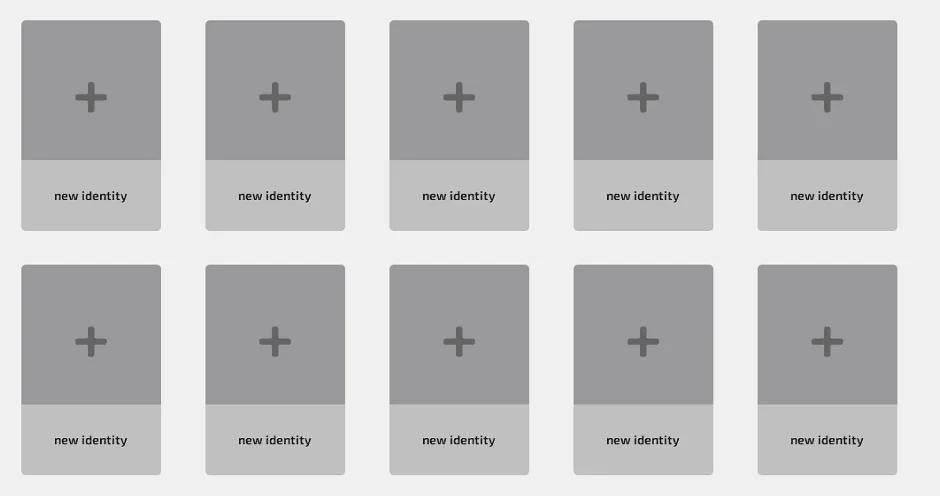
Note that Sphere requires a numeric IP address for connection. These proxies allow you to compile a list of IP addresses and use them sequentially, rather than relying on a random symbolic address. - In the pop-up Session Settings window, enter your account name and select the type of connection, for example, HTTP, SOCKS5, Tor, or SSH tunnel.
For this integration, select HTTP or SOCKS5 depending on the chosen proxy server.
Then enter the following data:
Connection IP address: 167.235.201.15.
Proxy server port: set the value to 11001. - Enter the proxy data from your Stableproxy panel. You can easily create and manage your proxy sub-users with our universal tool panel.
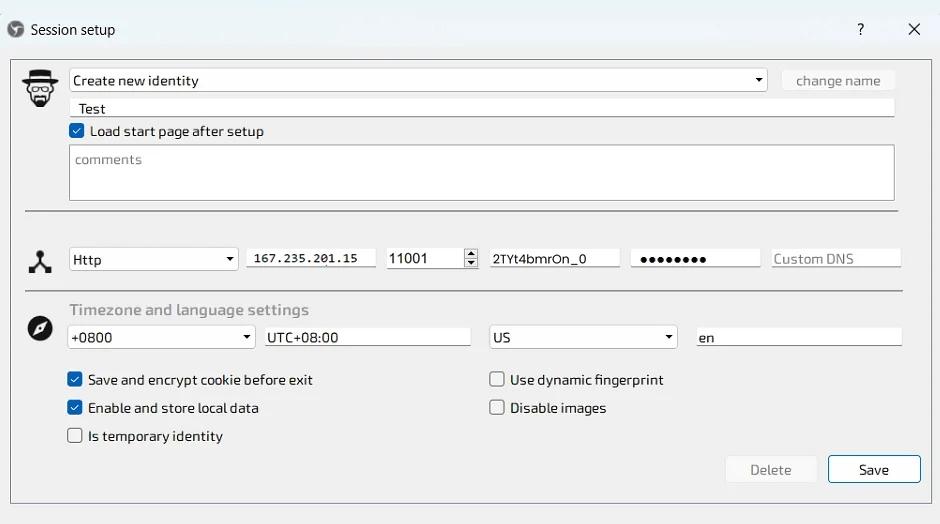
- Specify the time zone and language, and then click the "Save" button.
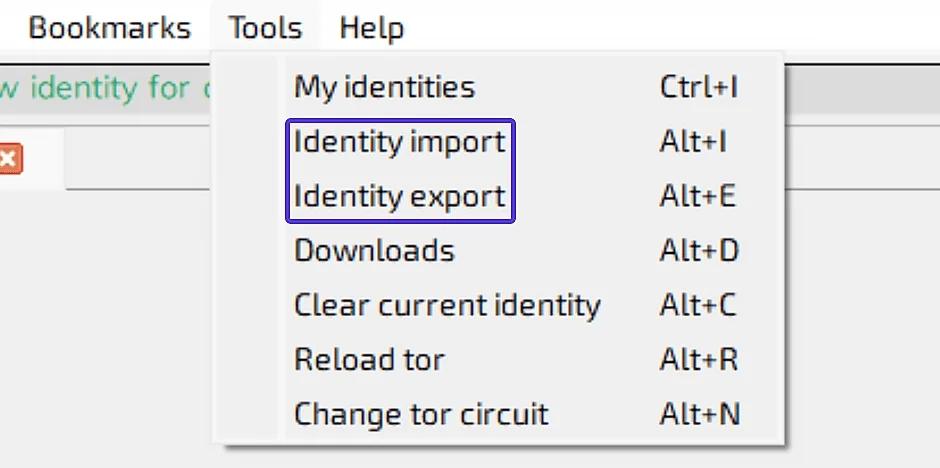
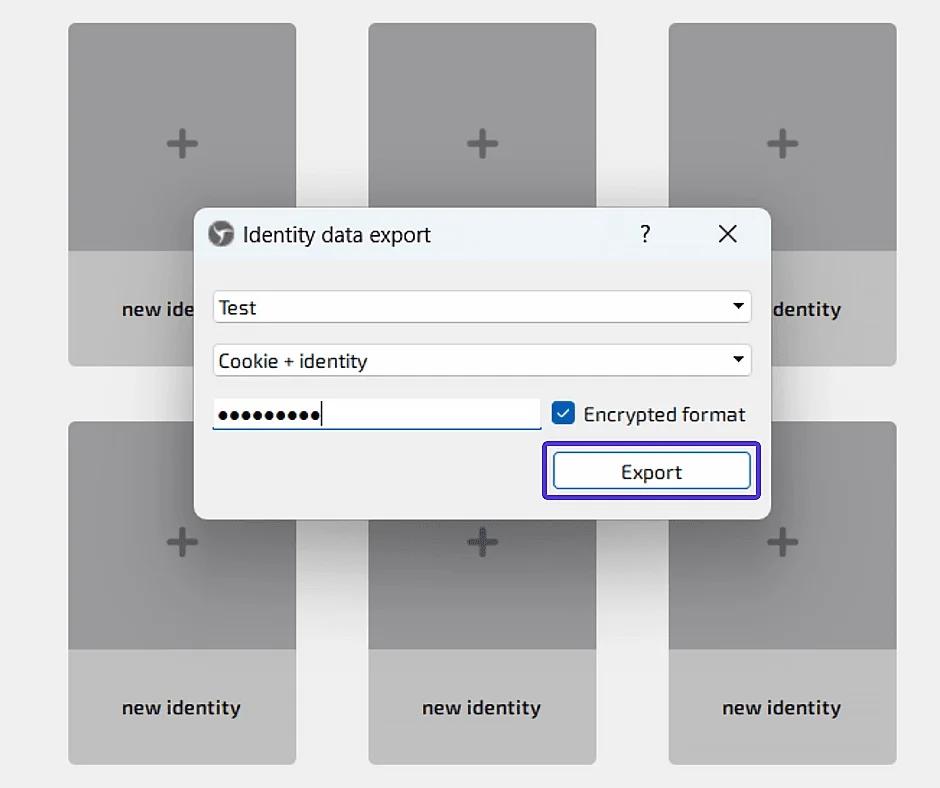
The new identifier is successfully set up. Remember that you have the option of using the Import/Export identification function in the Tools section to import and export the identifier.
That's it! Now you can freely multitask without worrying about interruptions or blocks. Each browser instance or tab will be considered as a separate device and will come from different places, which will enhance your web experience.


StableProxy.pl © 2023-2024