
How to connect Stableproxy proxy server to VMLogin - StableProxy
Published
Jun 26th, 2026
Topic
Manual
Reading time
10 mins


Author
StableProxy
Explanation of VMLogin
VMLogin is a flexible tool designed to replace multiple real computers with virtual browser profiles. You can easily manage different browser profiles, which simplifies the execution of your business tasks every day. You can seamlessly switch between different virtual browsers, making VMLogin a convenient and efficient solution for any task.
Follow the simple steps below to get started with VMLogin:
- Download VMLogin: Go to the official VMLogin website, download the latest version, and then install the program on your device.
- Register a VMLogin account: Launch VMLogin and register a new account. Enter the necessary information and create credentials. After creating the credentials, log in to the system.
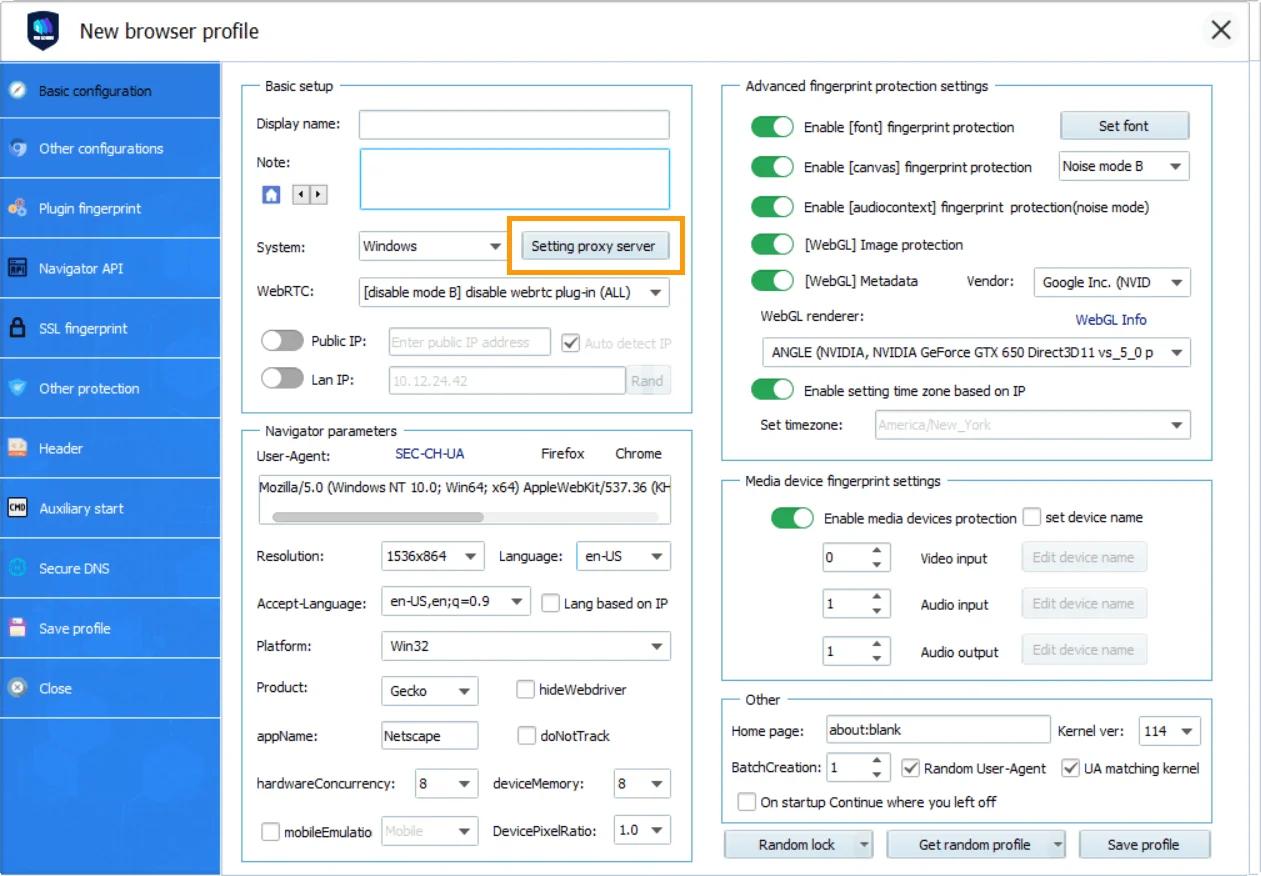
- Setting up a new browser profile: VMLogin gives you the flexibility to customize your browser interaction. You can create a random profile or choose your settings manually, such as the operating system, screen resolution, languages, etc. Once you are satisfied with the settings, proceed to the next step.
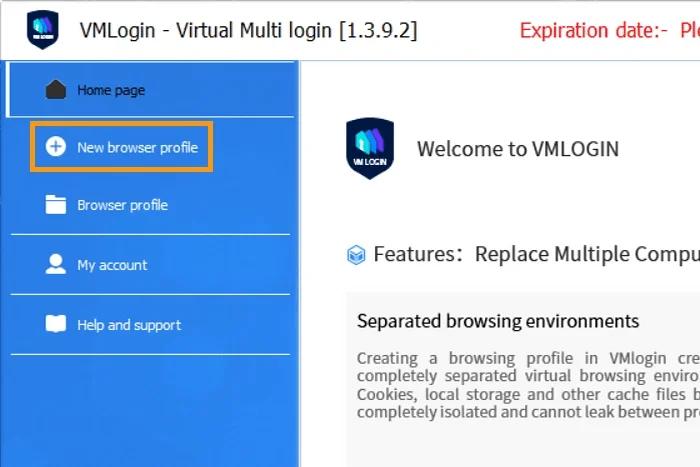
- Create a Stableproxy user: Go to the Stableproxy control panel and log in. If you don't have proxy servers, you can purchase a suitable plan for you in self-service mode.
- Apply proxy settings: Go back to the VMLogin proxy settings and enable the proxy. Now you need to enter the proxy data provided by Stableproxy.
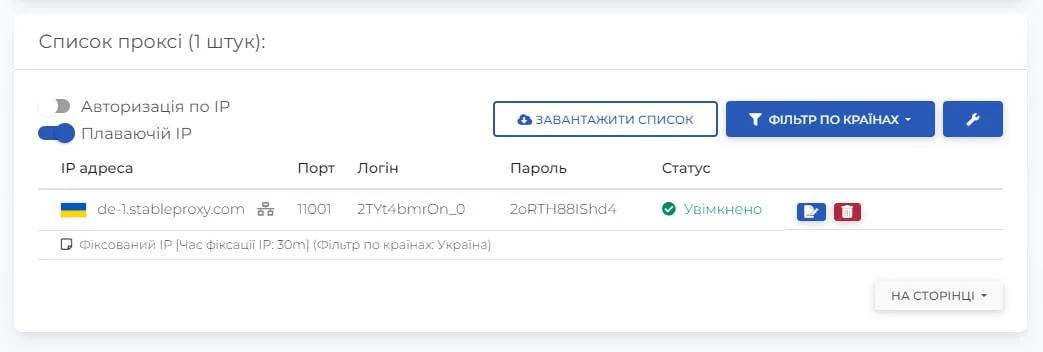
Enter the proxy data based on the information from the control panel.
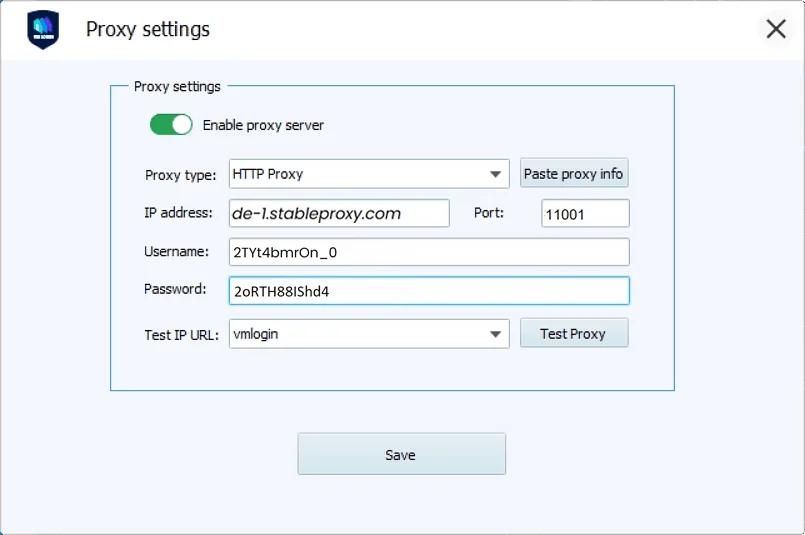
- Check your proxies: Check your proxies by selecting the "Test Proxy" option. This will allow you to determine whether the proxies are functioning correctly. After you have ensured their reliability, save the profile to keep your individual settings.
Congratulations! Your settings are complete, and now you can fully use Stableproxy with VMLogin.


StableProxy.pl © 2023-2024