
How to set up a proxy server on Windows - Guide from StableProxy
Published
Jun 23rd, 2026
Topic
Manual
Reading time
10 mins


Author
StableProxy
Proxy Server Configuration on Windows
Follow these instructions to configure a proxy server on Windows 10 and 11:
- Click on Start > Settings > Network and Internet > Proxy.
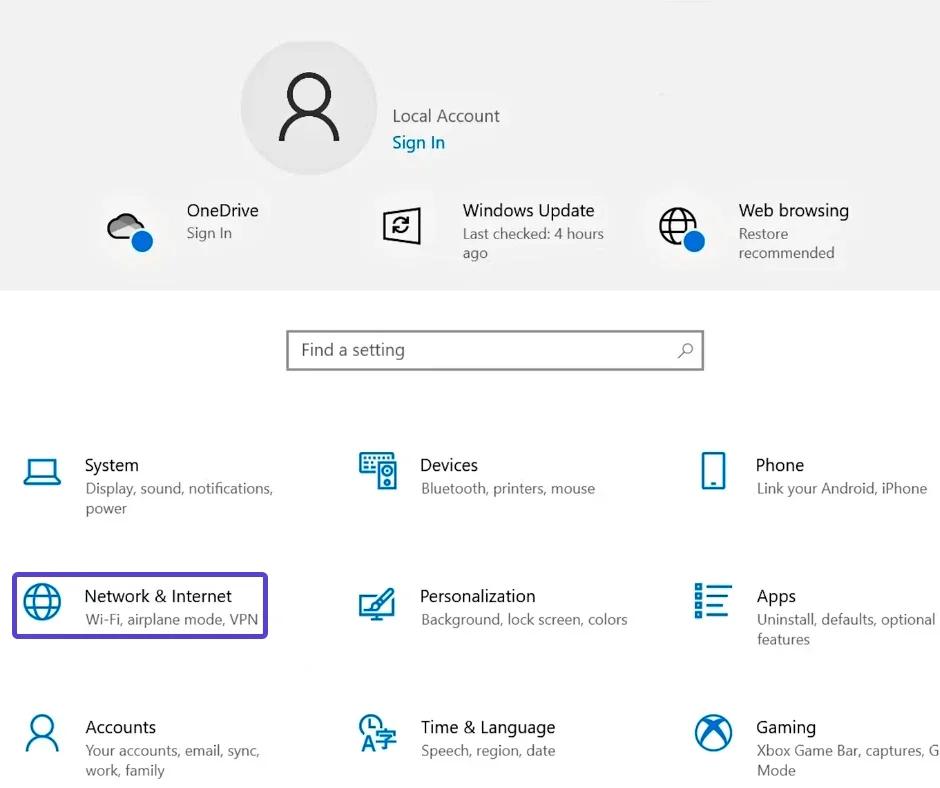
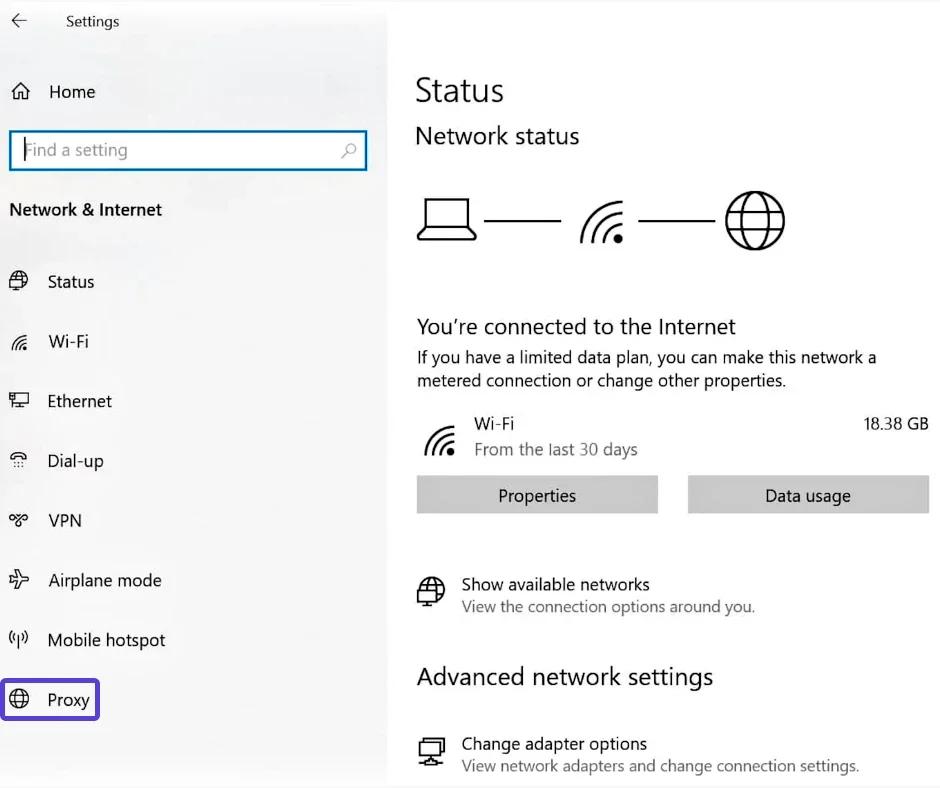
- Windows offers three methods of proxy server configuration: automated, scripted, or manual.
Automated Proxy Server Configuration
- In the proxy server settings section, simply switch to automatic settings detection.
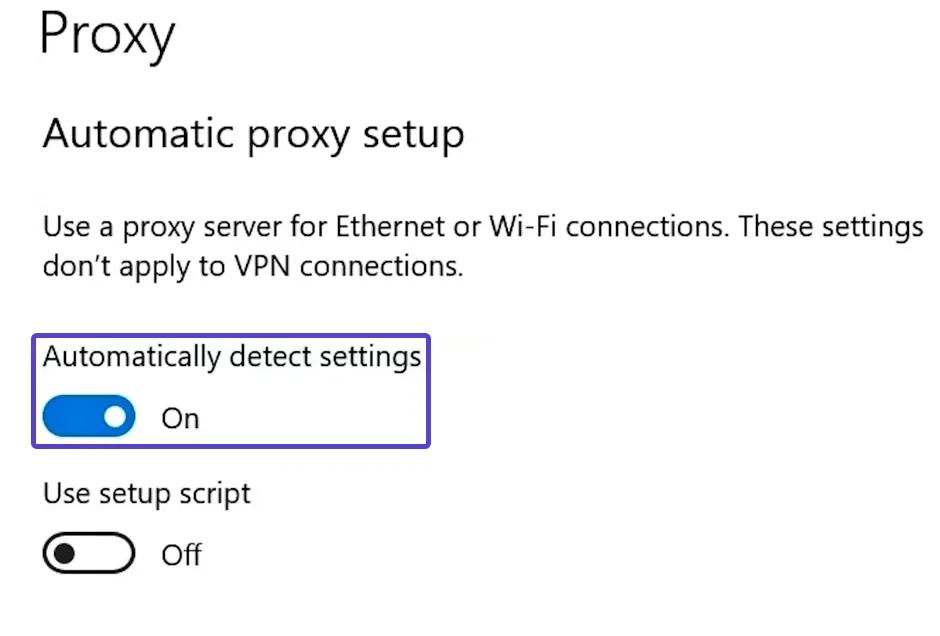
- By applying this function, Windows uses the Web Proxy Auto-Discovery Protocol (WPAD) to auto-detect the parameters of a legitimate proxy server. This is typically used by organizations to restrict access and protect corporate networks, providing controlled access and security of digital resources.
- If you are working on a personal PC or you want to configure the proxy server manually, you can disable this function. By disconnecting from it, you are given power over the proxy server configuration and the ability to set parameters to your liking.
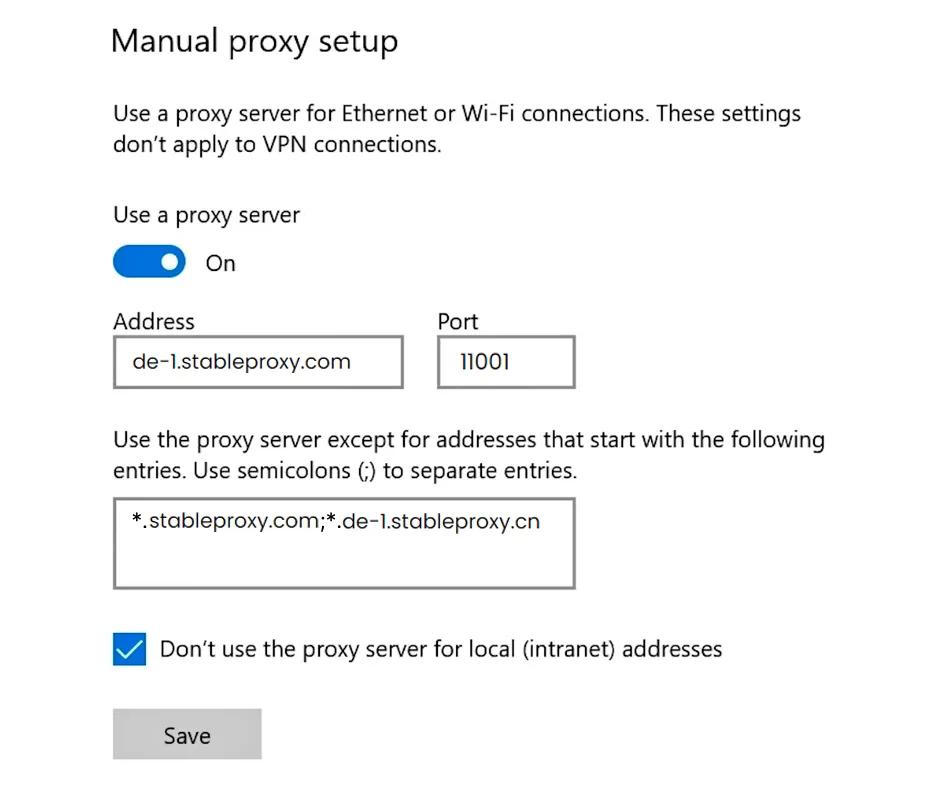
Manual Proxy Server Configuration
- Fill in the proxy server parameters, based on the information in your control panel.

Proxy Server Configuration Using Old Windows Settings
This instruction is relevant for all versions of Windows, including Windows 7, 8 and older. They have more features that are not available in the "Settings" app for Windows 10 and 11. To configure the proxy server, follow these steps:
- Access Control Panel > Network and Internet > Internet Options.
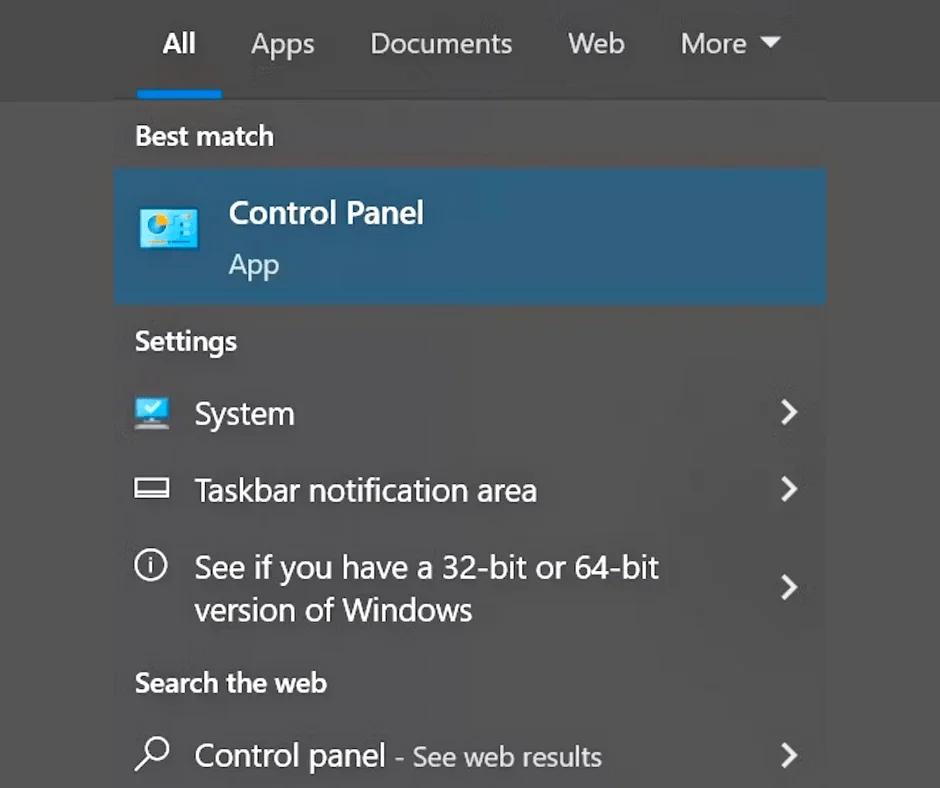
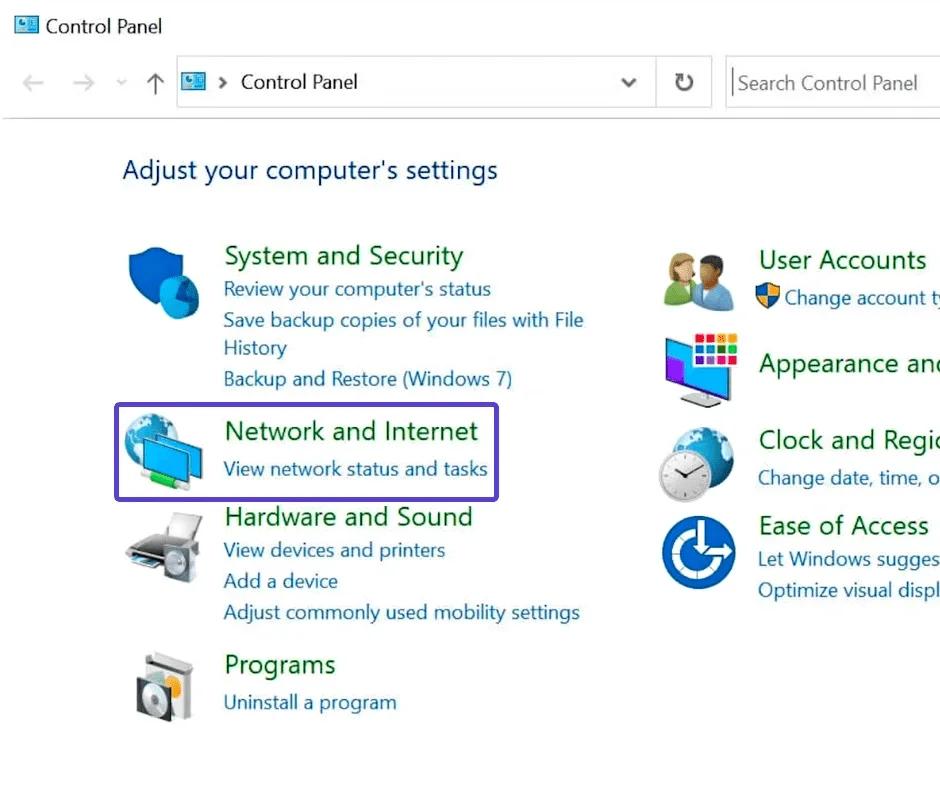
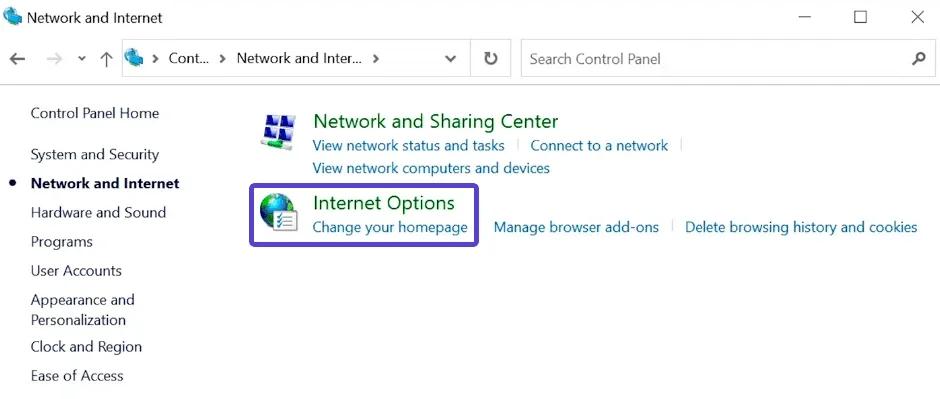
- In the Internet Properties window, go to the Connections tab and click on Local Network Settings.
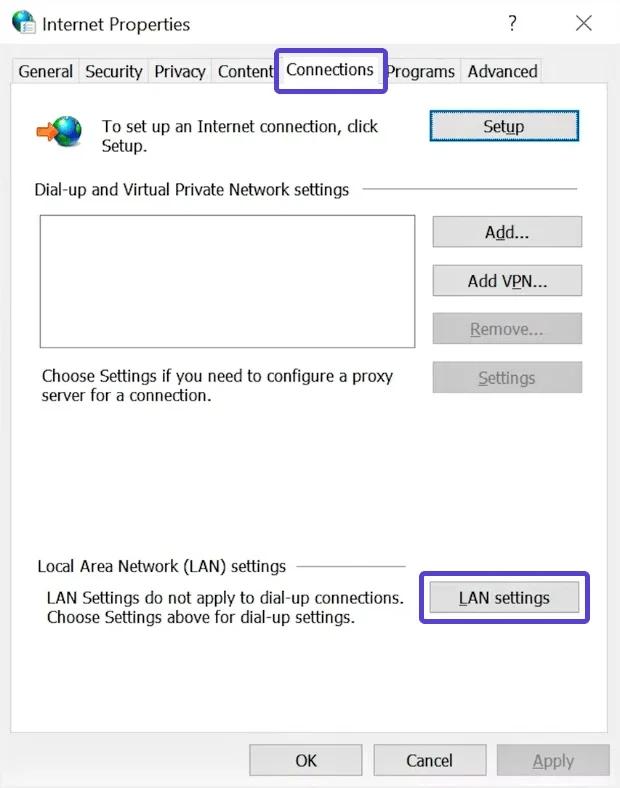
- Check the box next to "Use proxy server for your LAN" and then click "Advanced".
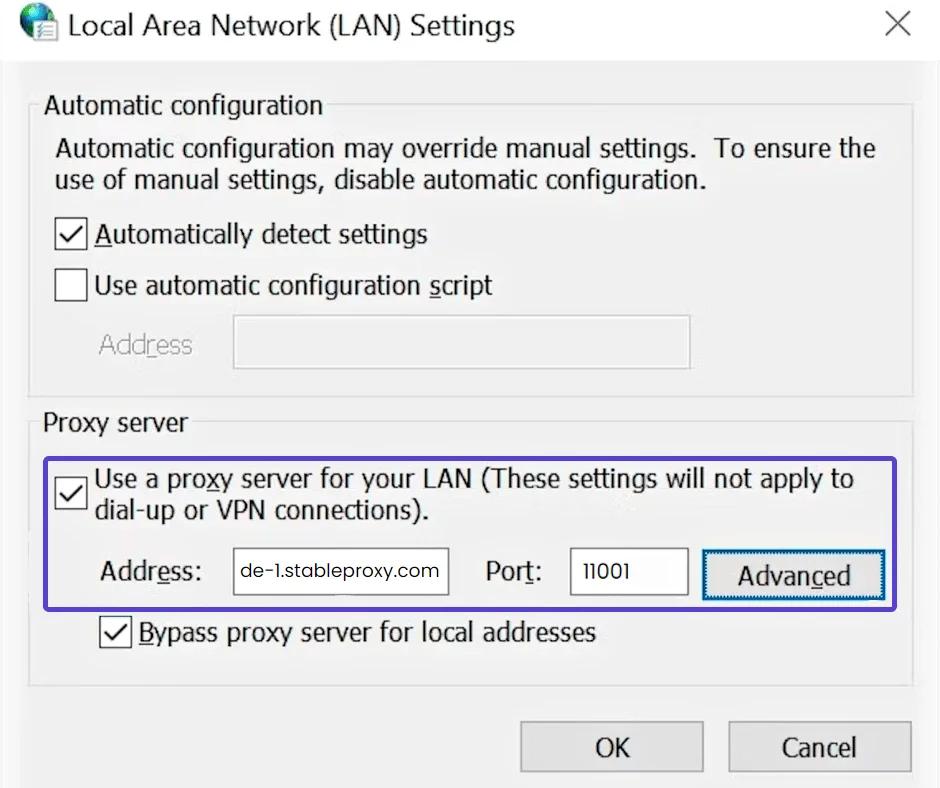
- Enter the proxy server data. A more detailed guide to setting up the Stableproxy proxy server can be found in the previous section. You can also choose the type of proxy (HTTP or SOCKS). These may be the settings that were specified in the previous section. If you entered any data here, they will also be displayed in the "Settings" app for Windows 10 and 11 users.
- Open a web browser to confirm that the proxy settings are working. Give the login credentials from Stableproxy and log into the system. Use the same credentials that you gave when creating a new sub-user on Stableproxy.
Everything is set up! Now you are ready to use the internet through a proxy connection.


StableProxy.pl © 2023-2024